spacestr

🔔 This profile hasn't been claimed yet. If this is your Nostr profile, you can claim it.

Edit
HamRadio.my (Unofficial)
Member since: 2026-10-16
HamRadio.my (Unofficial)
HamRadio.my (Unofficial) 13m

Horizon Nav: Free Ad-Free Navigation for Android Head Units and Android Auto TL;DR: Quick Summary Horizon Nav is a free navigation app for Android car head units that also runs on Android Auto, built by one developer in his spare time. It has no ads and no tracking, with a smooth 3D map, 3D car locator, 2D and 3D views, day and night themes, satellite view, live traffic routes, offline maps and offline routing, lane guidance, speed limit and speed camera warnings, EV battery planning, fuel prices, toll and motorway avoidance, voice guidance, one-tap fuel and coffee stops, hazard reporting, phone-to-car destination send, parked location memory and full Android Auto support. You install the APK from GitHub releases, paste in your own free TomTom API key and Mapbox token once, and it updates itself. It runs on Android 8 and up, works in the PIP window on units like DUDU7, and has usable performance settings for low-spec 2 GB RAM units. This guide covers what it is, how the map and navigation work, how to get keys, how to install it, and how it compares to Google Maps, Waze, OsmAnd and Magic Earth. What Is Horizon Nav? Horizon Nav is a free ad-free navigation application for Android car head units and Android Auto that provides 3D mapping, online and offline routing, live traffic, lane guidance and speed alerts without ads, accounts or tracking built into the app. The project was introduced in Horizon Nav: free, ad-free navigation for Android head units and Android Auto on r/Androidheadunits by developer PhilMcCrevis418. Downloads come from Horizon-Maps releases, support is via PayPal, and feedback runs through the Reddit thread and GitHub. The app is freeware from a solo developer, not a venture funded mapping company, and much of the feature list comes directly from head unit owner requests. Horizon Nav night 3D view: roundabout turn card, speed camera warning, live traffic route and speed limit badge. Image credit: PhilMcCrevis418 on r/Androidheadunits. Project Snapshot Item Detail App Horizon Nav by PhilMcCrevis418, solo developer build Version seen 1.0.358 dated 31 Oct 2026, self-updating APK Platforms Android head units Android 8 plus, phones, Android Auto Cost Free, no ads, no tracking in app, optional PayPal donation Map and routes Mapbox map tiles plus lane data, TomTom routes search and traffic Offline Downloadable offline maps and offline routing, several areas at once Repo and download Horizon-Maps on GitHub, release tag app Thread r/Androidheadunits gallery post with 11 screenshots, 37 upvotes at write time Why Head Units Needed Something Like This Factory phone apps assume a phone screen, a data SIM and a Google account. Car Android head units break all three assumptions. Many run Android 10 to 13 forks with 2 GB to 6 GB RAM, wide 1280×720 or 1920×720 screens, no Play certification, spotty GPS antennas behind heated windscreens, and data only when tethered to a phone hotspot. Google Maps works but nags with account prompts and heavy background services. Waze misbehaves in floating PIP windows on units like DUDU7 and locks to portrait phone logic. Sygic and iGO charge for traffic and cameras. OsmAnd is powerful but its UI feels built for hikers, not 70 mph glanceability. Horizon Nav targets that gap directly: landscape-first car UI, big turn cards, remembered 2D and 3D choice, user default zoom, day and night plus satellite, junction close-ups, PIP friendly rendering, and performance sliders that let a 2 GB unit turn effects down while a 6 GB unit turns everything up. The Reddit comments confirm the focus: DUDU7 owners testing PIP, 2 GB RAM owners asking for minimum spec, and the developer answering that Android 8 is supported and his own 6 GB head unit runs full quality. The Map The map is the reason most screenshots get upvotes. It’s a smooth 3D scene with extruded buildings, not a flat vector sketch. 3D buildings and terrain shading in town views, with day, night, auto and satellite themes. Locator choice: 3D car model in saloon, hatchback, estate, SUV, pickup, van or sports styles, or a classic arrow, or your own picture. 2D and 3D view toggle that the app remembers between drives. Custom default zoom for cruising when not navigating. Traffic overview when stopped, switchable, so the full congestion picture shows at red lights. Junction close-ups at exits and slip roads with lane highlights painted on the map, not just in the turn card. Compass, layers and zoom controls sized for touch at arm’s length on a dash mount. Day mode uses pale roads and green parks for sunlight readability. Night mode drops to dark navy with glowing route lines, as in the featured image, which keeps night vision and matches modern head unit themes. Navigation Features in Depth Routes with live traffic With both keys installed and routing left on Auto, version 1.0.358 asks TomTom and Mapbox for a route at the same time. The faster reply draws first, and a genuinely different road from the other service appears as an alternate choice. Live traffic flows from TomTom. Arrival and leave-by times follow the device 12 or 24 hour setting, a small fix that stops 16:52 showing on a head unit set to 4:52 pm. Offline maps and offline routing Many countries support full offline maps plus offline routing. Several areas can live on the unit at once, which matters because plenty of head units have no SIM and borrow a phone hotspot only when parked. Download home coverage on WiFi, drive with GPS only, and online features gracefully drop out while core guidance keeps working. The developer confirms map data can be downloaded in advance in the comment thread. Lane guidance The turn card shows lane arrows and the map lights the lanes to use. This is flagged as the hardest part to get right because painted lanes and map lane models don’t always line up. Expect excellent coverage on motorways and trunk roads, occasional mismatches on complex urban splits, and send the developer a screenshot when it looks wrong. That feedback loop is literally how the app improves. Warnings that save licences Speed limits, fixed speed cameras, average-speed zone warnings and stop sign warnings all run during guidance. The featured screenshot shows the pattern: red triangle speed camera banner, 30 mph roundel, live 63 mph readout, and a turn card counting down 0.3 mi to the 2nd exit. Warnings are visual plus voice, with mute control in the trip bar. EV and fuel logic Electric cars get battery level entry, predicted charge at arrival and charging stop suggestions along the route. Petrol and diesel drivers get live fuel prices in France, Austria and Germany including E85, plus one-tap fuel and coffee stops that insert without cancelling the route. Toll, motorway and ferry avoidance is global, with an extra option to avoid tolls only in selected countries for border runs. Voice, units and reporting Voice guidance works with or without street names, in km/h or mph. Drivers can report police, crashes and hazards for other users, and receive the same. Voice input, mute, add-stop and cancel sit in the bottom trip bar with arrival time, time to go and traffic delay. Phone and Car Integration Send a destination from the phone to the head unit for pre-trip planning indoors. Parked location memory after Android Auto disconnects, so the return walk in an unfamiliar town starts from the right car park. Full Android Auto support with the same map page as the phone app, not a stripped companion view. PIP window support on DUDU7 and similar units, with a 1.0.358 fix for arrows hiding under cards on cars that report odd screen geometry like Uconnect 8.4. Getting Your Free API Keys Horizon Nav ships with no keys built in. You add your own once. You need both keys for online routes and search, or use offline maps instead. Having both gives the best results because 1.0.358 queries both for routes. TomTom key for routes, search and traffic Go to developer.tomtom.com and create a free account. Open the dashboard and create an API key. The default key is fine. Make sure Routing and Search APIs are ticked for that key. Copy the key with no extra spaces. In Horizon Nav open Settings, Keys and accounts, paste into the TomTom box. Mapbox token for map, search and lane data Go to account.mapbox.com and create a free account. Open your account page and copy the default public token starting with pk. In Horizon Nav open Settings, Keys and accounts, paste into the Mapbox box. Restart guidance once so tiles, search and lane layers pick up the token. Leave out stray spaces when pasting. A 401 error almost always means a copied space, a restricted token, or a key created before the Routing and Search boxes were ticked. Create a fresh key, tick both services, paste clean, and try again. The Reddit thread has one 401 report fixed exactly this way. Both vendors offer generous free tiers that cover normal personal driving. Heavy commercial mileage can exceed free quotas, in which case offline routing or a second key rotation keeps costs at zero. Install on a Head Unit and on Android Auto On the head unit browser open the release tag and download HorizonNav-public.apk. Check the .sha256 file if you like. Allow install from unknown sources for the browser, then tap the APK. Grant location, notifications and background running so guidance survives screen sleep. Paste TomTom and Mapbox keys as above, download offline areas on WiFi. Set default zoom, 2D or 3D, day or auto theme, units, voice name verbosity and warning toggles. For Android Auto, install the same APK on the paired phone, connect by cable or wireless, accept the Android Auto prompts, and the same map page appears on the car display. For PIP on DUDU7, start guidance then tap home. The floating window keeps the arrow, next turn and ETA. Update to 1.0.358 or newer for the Uconnect layout fix. Minimum spec reported is Android 8. A 2 GB RAM plus 32 GB storage unit runs with performance settings turned down. A 6 GB unit runs full 3D buildings and traffic overlays smoothly. Privacy: What Leaves the Car The app itself carries no ads and no in-app tracking SDK, which is why head unit owners trust it over big tech navigation. Location still has to leave the unit for online services to work: TomTom sees origin and destination for routing plus live position for traffic, Mapbox sees tile and search requests plus lane data lookups. Offline navigation with downloaded maps keeps position on the unit. Hazard reports necessarily upload an event type and location so others benefit. There’s no Horizon Nav account tying drives to an identity, and the self-update check hits GitHub releases only. If you tether through a phone hotspot, the carrier still sees data volumes but not drive history beyond the two API vendors. For maximum privacy, navigate offline and enable data only for traffic on long trips. Horizon Nav Compared with Alternatives App Price and ads Head unit fit Offline routing Traffic and cameras Map style Horizon Nav Free, no ads, solo dev donation Landscape car UI, PIP, Android Auto, Android 8 plus Yes, several areas TomTom live traffic, cameras, avg zones Smooth 3D buildings, 3D cars, satellite Google Maps Free, account and data driven, no banner ads in nav Good but phone-first, heavy services Yes, limited areas Excellent traffic, cameras via Waze feed Clean vector, limited 3D Waze Free with ads and gamification Poor PIP on some units, portrait bias No real offline Best crowdsourced hazards, police Flat cartoon, fun but busy OsmAnd Free tier plus paid, no ads Powerful but fiddly in car Excellent offline, Contour lines Paid traffic, weak cameras Detailed topo, weak 3D Magic Earth Free, privacy focused Decent car mode Good offline Traffic and cameras included Clean 3D, fewer head unit tweaks Sygic Paid with trial, traffic extra Good car UI Good offline with paid maps Paid traffic and cameras Polished 3D, head-up display paid Horizon Nav wins for head unit owners who want Google-like polish with offline control, no account wall and direct developer access. Google wins for search depth and business hours. Waze wins for hazard density on commuter corridors. OsmAnd wins for hiking and total offline independence. How Radio Amateurs and Field Drivers Can Use It SOTA and POTA runs: download summit areas offline, drive on GPS alone past the last signal bar, send the trailhead from the phone the night before, and find the parked car after dark with the saved parking pin. EmComm and rallies: pre-load checkpoint loops, use toll and motorway avoidance for high-profile vehicle routing, keep junction close-ups on for unfamiliar marshals. Mobile HF and contest stations: 3D buildings help judge screening on VHF and UHF paths into town, satellite view helps pick lay-bys with clear southern sky for Inmarsat or QO-100 portable tweaks. Club trips and convoys: same offline packs on every car, same day theme for photos, hazard reports for deer and flood water on rural lanes. Navigation stays legal and safe: mount the unit where it doesn’t block airbags, set voice to full street names so eyes stay up, and never type keys or destinations while moving. Honest Limits No built-in keys means 10 minutes of signup and paste before first online route. Offline works immediately but search is thinner. Lane guidance varies by road. Motorways shine, odd urban splits can mismatch painted arrows. Live fuel prices cover France, Austria and Germany only at write time. Other regions show stations without live pence per litre. Solo developer risk applies. Updates are fast now, with same-week fixes in the thread, but long-term maintenance depends on one person and two upstream API vendors. Gallery screenshots show UK roads in miles. Metric regions work, but verify voice units and speed roundels after switching km/h to mph or back. Frequently Asked Questions Is Horizon Nav really free with no ads? Yes. The app is free with no ads and no tracking SDK. You supply free TomTom and Mapbox keys, and donations are optional via PayPal. Does it work offline with no SIM? Yes. Download offline maps and routing areas on WiFi. GPS guidance then works with no data, while traffic and online search pause. Which units and phones run it? Android 8 and newer head units, phones and Android Auto cars. Low 2 GB units use performance settings, 6 GB units run full 3D smoothly. Why do I get a 401 on the Mapbox key? A pasted space, restricted token or missing service tick causes it. Create a fresh token, allow required scopes, paste clean with no spaces. How is it different from Google Maps or Waze? It is landscape car-first with 3D cars, PIP friendly, offline routing, no account wall and direct solo developer support, but search depth is thinner than Google. Sources and Further Reading Original gallery post and screenshots: https://www.reddit.com/r/Androidheadunits/comments/1xk98mt/horizon_nav_free_adfree_navigation_for_android/ Download APK and version info: https://github.com/benbishop028-arch/Horizon-Maps/releases/tag/app Project repo: https://github.com/benbishop028-arch/Horizon-Maps Support development: https://www.paypal.me/BBishop462 TomTom developer keys: https://developer.tomtom.com/ Mapbox account tokens: https://account.mapbox.com/ 73 de 9M2PJU. Drive safe, navigate free, keep the RF quiet in the car. The post Horizon Nav: Free Ad-Free Navigation for Android Head Units and Android Auto appeared on HamRadio.my - Amateur Radio, Tech Insights and Reviews by 9M2PJU. https://hamradio.my/horizon-nav-free-adfree-navigation-android-head-units/ #androidauto #horizonnav #headunits #free #offline #app #map #summaryhorizon #quicksummary #car #rss #feeds #linksharing #qwibbit

#androidauto #horizonnav #headunits #free #offline
HamRadio.my (Unofficial)
HamRadio.my (Unofficial) 51m

FreeDV W2MWS: Personal FreeDV Fork with Decoded Speech, Callsign Watchlist and Modern Windows TL;DR: Quick Summary FreeDV W2MWS is a personal fork of FreeDV by Mark W2MWS that keeps full compatibility with the official app while adding practical operating extras. Headline additions are experimental local Decoded Speech transcription with Whisper.cpp and Silero VAD, a Callsign Watchlist fed by FreeDV Reporter, light dark and system themes, and independent snap windows with saved positions. Release W2MWS.14 from October 2026 merges upstream FreeDV 3.0-dev audio work including TX AGC with look-ahead limiter, TX level meter, latency and mute fixes and stability fixes, with builds for Windows, Linux and macOS. It is built with Codex assistance but tested and released by Mark himself, credits David Rowe VK5DGR and the FreeDV team, and invites on-air feedback via GitHub issues. What Is FreeDV W2MWS? FreeDV W2MWS is a community fork of the FreeDV GUI digital voice application for HF radio that adds local speech transcription, callsign monitoring and interface upgrades while tracking upstream FreeDV 3.0 development. The project was introduced in FreeDV W2MWS – My personal fork of FreeDV with some additional features on r/radioVibes by Mark W2MWS. Source and downloads live at msteele999/freedv-gui on GitHub, with the current Release W2MWS.14 offering Windows, Linux and macOS packages. It’s a personal build, not a replacement for official FreeDV, and it stays interoperable on the air because the modem and protocol remain upstream FreeDV. FreeDV W2MWS.14 in dark mode: Reporter on the left, Callsign Watchlist and Decoded Speech transcript below, RADE waterfall on 14.2360 MHz at right. Image credit: W2MWS on r/radioVibes. Project Snapshot Item Detail App FreeDV W2MWS by Mark W2MWS, personal fork of FreeDV GUI Upstream FreeDV by David Rowe VK5DGR and team, open source HF digital voice Release seen v3.0-dev-W2MWS.14, October 2026, Windows Linux macOS Key extras Decoded Speech Whisper.cpp plus Silero VAD, Callsign Watchlist, Light Dark System themes, snap windows Audio in .14 TX AGC plus look-ahead limiter, TX level meter, AGC window, latency and mute fixes License and cost Upstream GPL based, free download from GitHub releases Links GitHub repo, latest release, issues, Reddit thread FreeDV in 60 Seconds for Newcomers FreeDV moves voice through 1 to 2 kHz HF channels where SSB gets rough. Classical modes use Codec 2 at 700 to 3200 bits per second with strong FEC, so speech stays readable near minus 2 dB SNR while SSB is lost in noise. The new RADE path uses a neural autoencoder with FARGAN synthesis for more natural speech in the same bandwidth. The official GUI runs on Windows, Linux and macOS, keys PTT over CAT or VOX, logs to PSK Reporter style FreeDV Reporter at qso.freedv.org, and is maintained openly by Rowe and contributors. W2MWS builds on that exact engine, so a W2MWS station decodes any FreeDV station and vice versa. What Is New and Different in W2MWS 1. Decoded Speech with Whisper.cpp and Silero VAD The standout experiment is on-device transcription. Received audio passes through Silero voice activity detection, then Whisper.cpp writes text into the Decoded Speech Transcript window. The featured screenshot shows it live with phrases like The carrier is full of air in the Atlantic. You select transcription context per window, resize text with A- and A-plus controls, and keep operating while a hearing-impaired op, a noisy shack or a late-night low-volume session still gets the message. All processing stays local, no cloud account, which fits ham privacy and off-grid use. 2. Callsign Watchlist via FreeDV Reporter The lower left panel tracks callsigns of interest, including stations not yet seen. Columns show status, last seen local time and last update local time, with Add Remove and All filter controls. Colors follow a simple rule printed at the bottom: green listed or recent, yellow 1 to 12 hours, red over 12 hours, gray unknown or never seen. The Reddit screenshots show G6BBR, M6LAX, N1YXE, W2HRO, WA4GOK and ZS4ZS as examples. For net control, DX chasing or Elmer monitoring, the watchlist surfaces friends without scrolling the full Reporter firehose. 3. Modern Light Dark and System Themes Upstream FreeDV has a classic desktop look. W2MWS adds Appearance choices for System Light and Dark, visible at lower right in every screenshot. Dark mode suits night HF work, light mode suits daylight portable ops and screenshots for club newsletters. Theme choice persists with the rest of the config. 4. Independent Snap Windows with Memory Each tool is its own window: Reporter, Control, Waterfall, Spectrum, Frm Radio, Frm Mic, Frm Decoder, SNR, AGC dB, Watchlist, Transcript. Workspace offers Notebook versus Independent modes. In Independent mode you drag panels across monitors, snap them edge to edge, and positions and sizes restore on restart. The first gallery image shows a full multi-monitor spread with seven plots open at once, the fourth shows a compact two-panel layout. That flexibility helps small laptop screens and big contest desks alike. 5. Release 14 Audio Work W2MWS.14 merges current upstream 3.0-dev transmit changes on top of the W2MWS extras: Automatic gain control plus look-ahead limiter on transmit for consistent drive without clipping. New TX audio level meter plus independent AGC display window with snap and save support. Latency and mute-handling fixes on TX and RX, Reporter selection init fix, frequency persistence fix. Backend pinned to a verified revision for reproducible builds, plus OpenSSL compatibility fixes. CI passed on all three platforms before packaging, and Mark also ran local Windows functional tests. Install Guide Open the latest release page and pick your OS package. Windows: the installer is unsigned. After verifying the download came from msteele999/freedv-gui, accept the SmartScreen prompt with More info then Run anyway. Linux: use the matching package for your distro, install audio and serial permissions for your user, select Pulse or PipeWire devices in Setup. MacOS: open the DMG, drag to Applications, approve mic access on first run. Configure radio CAT, audio in and out, and FreeDV Reporter identity. Start with RADE V1 on 14.236 MHz USB-D during daytime, as in the screenshots. Add watchlist calls, open Decoded Speech, choose Dark for night sessions, arrange windows once and let them save. Minimum hardware is modest: any dual-core 64-bit laptop from the last decade with a USB sound interface like DigiRig, SignaLink or internal rig USB audio. Transcription adds CPU load, so disable it on very old Atoms or Raspberry Pi class boards if decode stutters. How to Operate It on Air Park on 14.236, 7.177 or 3.65 MHz USB-D calling spots, watch Reporter for RADE V1 activity, click a row to QSY logic or tune manually. Hit Tune at low power, set TX attenuation near minus 12 dB as shown, watch the TX meter kiss peaks without flat-topping. Enable Record for audio archiving, Log QSO for local log, Turn Off or Turn On for Reporter feed. Use Start Voice Keyer w2mws for CQ loops during antenna tests, XMIT with Space or button for overs. Keep the transcript open as a second set of ears, but log what you actually heard. Experimental STT still mangles callsigns and phonetics under fading. W2MWS Versus Official FreeDV Area Official FreeDV GUI FreeDV W2MWS fork Modem and on-air compat Current stable and 3.0-dev, reference Same upstream modem, fully compatible Transcription None built in Local Whisper.cpp plus Silero VAD, experimental Callsign alerts Full Reporter table, no watchlist Reporter plus color-coded Watchlist with history sort filter Themes Classic desktop System Light Dark plus classic controls Windows Docked notebook layout Notebook or Independent snap windows with saved geometry TX audio in Oct 2026 Upstream AGC and limiter as merged Same merged AGC limiter plus extra meters and AGC window Releases Official signed builds Personal CI builds for three OSes, Windows unsigned warning Support Official forum and GitHub GitHub issues on fork, upstream credit to Rowe team Choose official for club standard builds and documentation. Choose W2MWS if you want transcription, watchlist and free-floating windows today and you accept beta quirks and an unsigned Windows installer. Honest Limits Decoded Speech is marked experimental for a reason. Accents, pileups, QSB and low SNR produce plausible but wrong words. Never relay traffic solely from the transcript. Zero stars and zero forks at write time means tiny tester base. Expect rough edges and fast churn as Mark merges upstream daily. Windows SmartScreen friction will confuse newcomers. Always verify the URL is github.com/msteele999/freedv-gui before bypassing. Codex-assisted development speeds UI work but can’t replace RF testing. Real QSO reports on different rigs and sound cards are the bottleneck, which is why the Reddit post explicitly asks active FreeDV users for feedback. Frequently Asked Questions Does W2MWS work with normal FreeDV users? Yes. The modem is unchanged upstream FreeDV, so W2MWS and official clients decode each other on all modes including RADE V1. Is transcription local or cloud? Local. Whisper.cpp and Silero VAD run on your PC with no account or internet needed after model download. Which systems run Release 14? Prebuilt packages for Windows, Linux and macOS from the GitHub latest page. All three passed CI before release. Is this meant to replace official FreeDV? No. Mark credits David Rowe and the FreeDV team and describes it as a personal community fork for testing extras. Where do I report bugs? On the fork issue tracker with OS version, rig, sound device, mode and steps to reproduce plus screenshots. Sources and Further Reading Original Reddit post and screenshots: https://www.reddit.com/r/radioVibes/comments/1xjgqp9/freedv_w2mws_my_personal_fork_of_freedv_with_some/ Source code and releases: https://github.com/msteele999/freedv-gui Latest download: https://github.com/msteele999/freedv-gui/releases/latest Issue tracker: https://github.com/msteele999/freedv-gui/issues Official FreeDV project: https://freedv.org/ 73 de 9M2PJU. Test the fork, report real QSOs, credit upstream. The post FreeDV W2MWS: Personal FreeDV Fork with Decoded Speech, Callsign Watchlist and Modern Windows appeared on HamRadio.my - Amateur Radio, Tech Insights and Reviews by 9M2PJU. https://hamradio.my/freedv-w2mws-personal-fork-decoded-speech-watchlist/ #callsignwatchlist #decodedspeech #freedv #windows #fork #upstreamfreedv #mark #silerovad #davidrowe #reporter #rss #feeds #linksharing #qwibbit
#callsignwatchlist #decodedspeech #freedv #windows #fork
HamRadio.my (Unofficial)
HamRadio.my (Unofficial) 1d

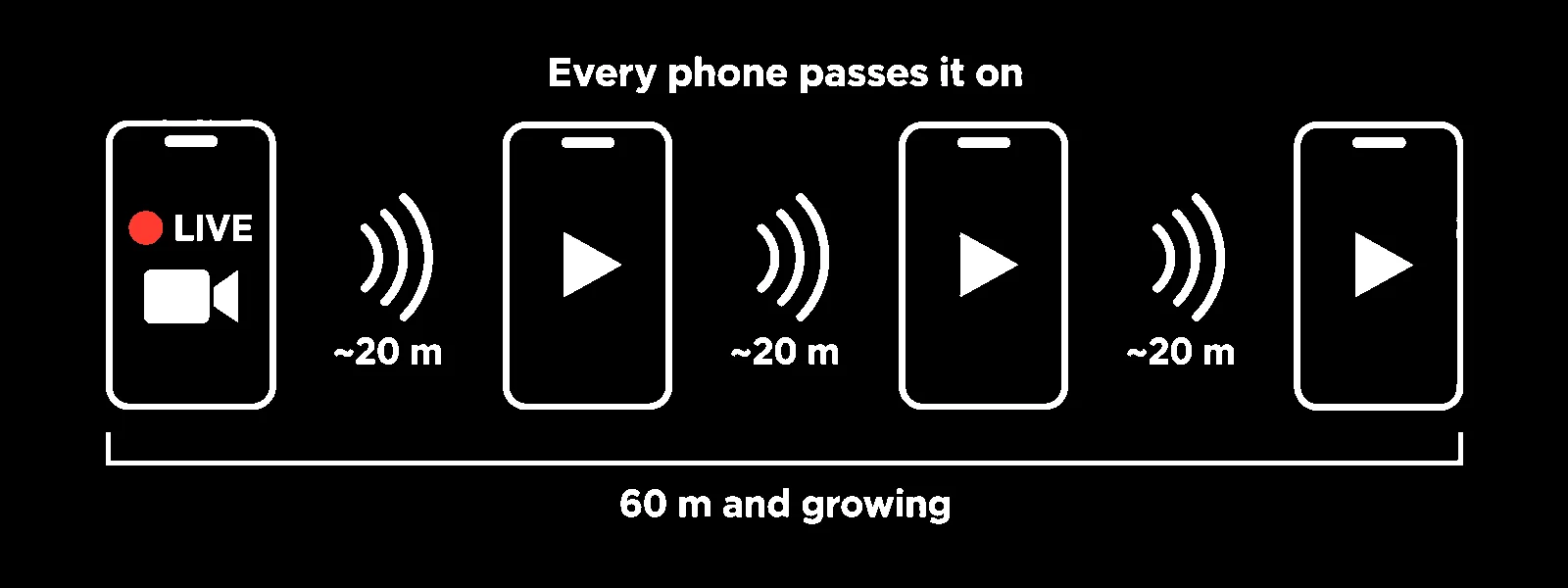
MeshLive: Encrypted Voice Calls, Video Calls and Livestreams Over Bluetooth Mesh with No Internet TL;DR: Quick Summary MeshLive is a free and open source GPL-3.0-or-later Android app that carries encrypted voice calls, video calls, text chats and livestreams over a Bluetooth mesh with no internet, no SIM card, no account and no server. Every phone running it can relay: a livestream hops from phone to phone so range grows with the crowd, and calls go direct or through up to four relays. It uses three Bluetooth transports (LE GATT pairing-free by default, Classic for throughput, LE L2CAP CoC experimental), AES-256-GCM link encryption plus a second end-to-end layer, rotating Bluetooth IDs and QR-verified contacts. Install comes from GitHub releases or Obtainium with certificate-pinned verification, and the APK can even be shared phone to phone with no internet at all. The app is in beta with about 300 stars and 44 forks: video is small, audio-only mode reaches furthest, and the authors warn against relying on it where safety depends on it. For amateur radio operators it’s a natural companion for EmComm, Field Day, SOTA and POTA groups, foxhunts, club events and internet-shutdown scenarios: short-range team voice plus live video from the antenna site, all off grid. What Is MeshLive? MeshLive is a free open source Android application that provides end-to-end encrypted voice calls, video calls, messages and livestreams between nearby phones over a Bluetooth mesh network with no internet connection, SIM card, account or server involved. The project lives at https://github.com/MeshLive/meshlive-android with sibling builds for Windows (beta) and Apple platforms (source build, experimental). Bluetooth alone reaches about 10 to 30 metres; MeshLive stretches that by turning every phone running it into a relay, so a stream or call hops from phone to phone and the usable footprint grows with each participant. How MeshLive relaying works: four phones spaced about 20 metres apart pass a livestream along, stretching reach to about 60 metres and growing with every phone. Image credit: MeshLive project, GPL-3.0-or-later. Project Snapshot Item Detail Project MeshLive for Android by the MeshLive org License GPL-3.0-or-later, free and open source Requirements Android 10 or newer, Bluetooth, same app on both ends Status Beta: works on tested phones, do not rely on it where safety depends on it Traction About 300 stars, 44 forks, 32 commits at write time Transports LE GATT default (no pairing), Bluetooth Classic (paired, higher throughput), LE L2CAP CoC (experimental); discovery always over Bluetooth LE Media Live video in AV1, VP9, HEVC or H.264 with mono 48 kHz Opus audio at 32 kbps; audio-only radio mode available Encryption Per-phone signing keys, signed handshakes, ordered AES-256-GCM records plus a second end-to-end layer relays cannot read Distribution GitHub releases per-ABI APKs, Obtainium auto-updates, phone-to-phone offline APK share, Windows beta, Apple source builds Links Android repo, latest release, user guide, privacy doc, supported phones What It Does: Calls, Livestreams, Contacts, Privacy Calls Voice and video calls with people nearby, end-to-end encrypted phone to phone. Missed-call history with call back, block-unknown-callers switch, hold-Mute-to-talk intercom style voice, ringer plus Do Not Disturb handling, proximity screen-off lock, answer and decline from the notification and over the lock screen. A GATT call that loses one audio direction can re-link itself on a fresh Bluetooth link within about 12 seconds without redialing, keeping the same keys. Relayed calling through up to four relays exists as an experimental debug feature. Livestreams Go live and share the phone camera with everyone around, or go audio-only like a local radio station that keeps playing with the screen off. Viewers can relay the stream onward (on by default, auto-paused below 20 percent battery or in Battery Saver), and each receiver verifies the stream truly comes from the original source. Authenticated pause, resume and stop states keep control with the broadcaster. Because Bluetooth is slow, video is small; audio-only streams use a fraction of the capacity and reach the most phones. Contacts Add people by scanning each other’s QR code in person or comparing a safety code, then call them from Contacts whenever they are nearby. Strangers never see your real name: they see a random two-word label such as Gold Fox, or a tilde name they asserted themselves, while your chosen name travels encrypted only to people you call. One-time five-minute codes and mutual scanning keep verification honest. Privacy by default No internet path for media, no SIM requirement, no account, no ads, no analytics, no servers. Rotating Bluetooth IDs, identity-hiding call handshakes and per-stranger throwaway identities are on by default, plus a Hide phone name default that renames the handset to Phone so nearby scanners learn nothing. Everything can be wiped from inside the app with a typed DELETE confirmation. Experimental store-and-forward messages (text, voice notes up to two minutes, photos, files to 64 MB) wait for accepted contacts and deliver on next proximity. How It Works Under the Hood Each hop adds a little delay and Bluetooth airtime is spent twice per forward, so quality falls with chain length: a multi-phone relay test in October 2026 showed relayed viewers at 0.9 to 7.6 FPS at 300 kbps. Short chains of low-rate video are realistic; long chains of high-rate video aren’t. Auto video quality starts near 360p on a typical link and adapts up or down, dropping to audio-only on very weak links rather than freezing. Transports trade reach against speed: LE GATT works pairing-free on the most phones but is slowest, Classic needs a one-time mutual pairing in Android Bluetooth settings and carries the most, LE CoC is experimental with stack bugs on some phones. Discovery is always Bluetooth LE. A device-family policy registry centralizes known Bluetooth-stack and codec quirks with per-entry kill switches. Install, Update and Verify Install On the phone open the latest release and tap the APK (pick MeshLive.apk arm64 for almost every phone since 2016, armeabi-v7a for older 32-bit models, universal when unsure). Allow the browser to install unknown apps, then tap Install. Open MeshLive and grant Nearby devices, Camera and Microphone, then enable Bluetooth. Updates three ways Obtainium: add the repo URL in Obtainium for automatic release tracking. In-app check: opt in once to Check for updates when online; the app then queries the GitHub release API at most daily, downloads nothing until tapped, and installs only same-key signed, newer, matching-ABI builds whose SHA-256 matches the published sums. Android always confirms; nothing installs silently or downgrades. From a nearby phone: connected peers advertise their version, and Settings can share the installed APK over Quick Share, Nearby Share, Bluetooth or experimental Wi-Fi Direct, with on-screen APK and certificate hashes to compare. Verify a release The release signing certificate SHA-256 is published in the release notes and the repo: 2E:EF:C0:5A:44:45:22:52:9D:9F:75:D7:EB:CE:FD:08:86:47:07:F2:1A:79:04:1D:B5:1E:BF:F8:36:49:E2:13 Check with apksigner verify --print-certs (single matching signer), sha256sum -c SHA256SUMS, and gh attestation verify for the source manifest. Never mix APKs from different publishers on one phone; updates require the same signing key. Daily use notes Tabs are Live, Calls (Nearby plus Recent), Contacts and Settings. First start asks to hide the phone Bluetooth name (recommended default) and offers one-tap background-running allowance so relays keep working with the screen off (relaying costs noticeable battery and warmth). Android 10 and 11 need the Location switch on for Bluetooth discovery even though the app never reads location. Contacts verify in person; everyone else stays an ID or rotating nickname. How Amateur Radio Operators Can Use MeshLive 1. EmComm when the grid and internet fail Floods, storms and outages routinely take out cellular data first while handsets stay powered. A team with MeshLive preinstalled keeps short-range voice coordination, audio-only broadcast announcements from net control, and contact-verified calling with no tower, no Wi-Fi and no account server. Pre-share the APK and verify contacts before deployment day, because there may be no internet to fetch it later. 2. Field Day and portable site talk-around Field Day sites sprawl across tents, masts and parking. MeshLive gives tent-to-tent voice without tying up an amateur frequency for logistics chatter, plus live video from the antenna crew back to the operating tent (for example showing a masthead during raising). Audio-only mode is the workhorse here: lowest bandwidth, longest reach, plays with the screen off in a pocket. 3. SOTA, POTA and summit groups Activators split across a summit (operating position, antenna ledge, parking shuttle) stay in voice contact over Bluetooth relay even where cellular coverage drops behind the ridge. The livestream lets the logger watch the antenna tune-up in real time. Remember the 10 to 30 metre per-hop Bluetooth reality: this suits one summit group, not valley-to-peak links. RF still does the QSOs; MeshLive does the logistics. 4. Foxhunts and direction-finding events Hunt organizers can broadcast audio-only instructions and boundary changes to all teams at the start line, then take voice check-ins without burning a repeater channel. Because strangers see only rotating IDs, teams keep callsign privacy until they choose to identify, matching good hunt practice. 5. Club nights, hamfests and exam sessions In a noisy hall with saturated Wi-Fi, MeshLive streams a demo bench to nearby phones and takes questions by voice call. VE teams can coordinate candidate flow across rooms with no venue network dependency. The rotating stranger IDs plus block-unknown-callers switch keep unsolicited calls out during presentations. 6. Internet-shutdown and censorship resilience Where authorities throttle or cut the internet, Bluetooth mesh keeps working. MeshLive joins the toolkit alongside HF radio and sneakernets: local team voice plus one-to-many audio broadcast with no provider to block. Nothing identifying travels in the clear to strangers, and real names go encrypted only to chosen contacts. 7. Training new hams in net discipline Before handing a novice a microphone on a repeater, run a practice net on MeshLive audio-only: callsign-style check-ins, directed-net control, relay discipline, prowords. Mistakes cost nothing and touch no spectrum. The mute-to-talk intercom feel transfers directly to push-to-talk habits. Practical limits hams must respect MeshLive is beta and unaudited: never make it the sole safety or emergency channel. Amateur radio procedure plus a backup plan stay mandatory. Range is tens of metres per hop through open air and far less through walls; plan relay phone placement (high, central, screen-off relay volunteers) rather than assuming building-wide coverage. Video is small and relay chains degrade fast; default to audio-only for anything beyond two hops. Both ends need Android 10 plus with the same app; iPhones can’t join yet, so mixed groups need loaner handsets. Bluetooth and Wi-Fi based phone links aren’t amateur spectrum and carry no callsign requirement, but identify per the event plan anyway and keep RF operating separate and legal. MeshLive Compared with Alternatives Tool Bearer Range model Voice plus video Works with no internet Identity model License MeshLive Bluetooth mesh, phone relays 10 to 30 m per hop, grows with crowd Yes, plus audio-only broadcast and beta messaging Yes, fully offline after install Rotating IDs, QR-verified contacts, E2E encrypted GPL-3.0-or-later open source Meshtastic LoRa 868/915 MHz plus BLE to phone Kilometres per hop with line of sight Text plus telemetry, voice only experimental Yes, needs dedicated LoRa radios Node IDs, optional encryption GPL-3.0 open source Briar Bluetooth, Wi-Fi, Tor Bluetooth range or internet via Tor Messaging plus forums, no calls Bluetooth yes, full mesh needs Tor Tor-hidden accounts, in-person verification GPL-3.0 open source Bridgefy Bluetooth mesh Bluetooth range per hop Messaging, paid broadcast SDK Yes after install Phone-number based Proprietary freemium Serval Mesh Wi-Fi adhoc plus UHF radio Wi-Fi range per hop Voice plus messaging Yes with compatible phones or extenders Mesh phone numbers Mixed open source Handheld FM simplex Amateur RF 2 m/70 cm Kilometres, terrain dependent Voice (and APRS data separately) Yes, needs license and radios Callsign on air Licensed service, open procedure MeshLive wins when everyone already carries an Android phone and the job is short-range team voice plus live pictures with zero infrastructure. Meshtastic wins for kilometre-scale text telemetry with dedicated radios. FM simplex remains the licensed, long-range, interoperable backbone; MeshLive complements it for logistics that should stay off the amateur frequencies. Frequently Asked Questions Does MeshLive need internet, a SIM or an account? No. Calls, streams and beta messages travel only over Bluetooth between nearby phones. Internet permission exists solely for the optional release check and experimental Wi-Fi Direct APK sharing, never for media. How far does MeshLive reach in practice? One Bluetooth hop covers roughly 10 to 30 metres in the open and less through walls. Each relay phone extends the chain, but every hop costs airtime and quality. So plan short chains and prefer audio-only mode. Can hams use MeshLive for emergency communications? Yes as a complement, never as the sole safety channel. It suits team talk-around and announcements when cellular data fails, but it is beta and unaudited, so keep amateur radio procedure and backups in place. Which phones run MeshLive? Android 10 or newer on both ends. Tested reference phones include Samsung S24, S22, A55 and M31, plus Redmi, ASUS and OPPO models. Other phones may work or hit Bluetooth-stack bugs worth reporting. How is MeshLive different from Meshtastic? MeshLive runs on phones you already carry over Bluetooth with voice, video and broadcast; Meshtastic needs dedicated LoRa radios and excels at kilometre-scale text. Many groups will happily run both side by side. Sources and Further Reading MeshLive Android repository: https://github.com/MeshLive/meshlive-android Latest release and APKs: https://github.com/MeshLive/meshlive-android/releases/latest User guide (install, features, FAQ): https://github.com/MeshLive/meshlive-android/blob/main/docs/user-guide.md Privacy document: https://github.com/MeshLive/meshlive-android/blob/main/docs/privacy.md Supported phones: https://github.com/MeshLive/meshlive-android/blob/main/docs/devices.md Architecture doc: https://github.com/MeshLive/meshlive-android/blob/main/docs/dev/architecture.md Meshtastic open source LoRa mesh: https://meshtastic.org/ Briar secure messaging: https://briarproject.org/ Obtainium app updater: https://github.com/ImranR98/Obtainium 73 de 9M2PJU. Short-range mesh on the phone, long-range work on the radio. The post MeshLive: Encrypted Voice Calls, Video Calls and Livestreams Over Bluetooth Mesh with No Internet appeared on HamRadio.my - Amateur Radio, Tech Insights and Reviews by 9M2PJU. https://hamradio.my/meshlive-bluetooth-mesh-calls-livestreams-offline-android/ #bluetoothmesh #encryptedvoice #voicecalls #internet #meshlive #quicksummary #project #sim #beta #gatt #rss #feeds #linksharing #qwibbit
#bluetoothmesh #encryptedvoice #voicecalls #internet #meshlive
HamRadio.my (Unofficial)
HamRadio.my (Unofficial) 1d

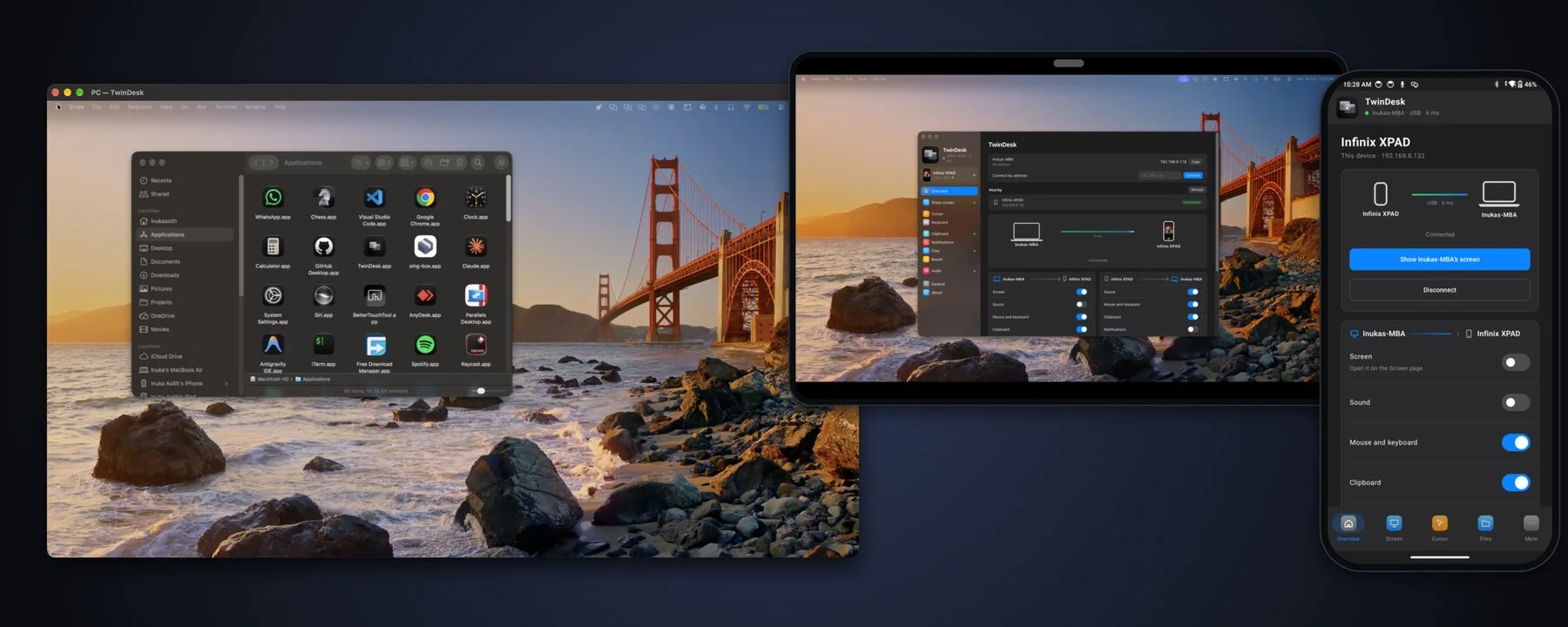
TwinDesk: One Open Source Desk for Mac, Windows, Linux and Android with No Account and No Cloud TL;DR: Quick Summary TwinDesk is a free and open source GPL-3.0 application by Inuka Asith that makes a Mac, a Windows PC, a Linux box and an Android phone work as one desk. One mouse and keyboard drive every screen, files drag across the screen edge, clipboard text and pictures paste on any device, and an Android phone contributes calls, texts, photos, camera, remote control and gamepad input. It works over the same Wi-Fi, a USB cable, Bluetooth, on-demand Wi-Fi Direct, or a phone hotspot, with no account, no cloud relay and no telemetry. Version 2.4.0 covers macOS 13 plus, Windows 10 and 11, Linux on X11 and Wayland, and Android 10 plus. For amateur radio operators this solves the classic multi-device shack problem: run the rig-control PC, the logging laptop and the cluster tablet from one keyboard, answer the phone without leaving the chair, push waterfall screenshots between machines, and keep everything working on Field Day with no network at all. What Is TwinDesk? TwinDesk is a free open source device-unification application that shares screens, apps, files, clipboard, cameras, calls, texts, notifications, mouse and keyboard between Mac, Windows, Linux and Android over a direct encrypted link with no account and no cloud. Install the same app on each computer and phone, pair once with a code, then turn on only the features you want. Push the pointer off the edge of one screen and keep working on the next computer. Open a Windows app on a Mac in its own window. Extend a desktop onto an Android tablet. Answer a phone call from the PC. Copy a screenshot on one machine and paste it on another. Every feature starts switched off on a fresh install and isn’t even loaded until enabled, which keeps idle memory low (about 125 MB in the tray on Windows in v2.3 plus). The project lives at https://github.com/InukaAsith/TwinDesk with website and live browser demo at https://twin-desk.vercel.app. It holds about 1,400 stars and 109 forks, 269 commits, and ships Electron apps for desktops plus a native Kotlin Jetpack Compose app for Android. TwinDesk links Mac, Windows, Linux and Android into one desk: extended screens, single apps in their own windows, and the phone as a full peer. Image credit: Inuka Asith, TwinDesk repository, GPL-3.0. Project Snapshot Item Detail Project TwinDesk by Inuka Asith License GNU GPL-3.0, free and open source Latest release 2.4.0 (2.3.0 added phone camera, remote, gamepad, picture clipboard, cursor lock) Platforms macOS 13 Ventura plus (Apple Silicon and Intel), Windows 10 and 11 (x64 and ARM64), Linux X11 and Wayland (deb, AppImage, Arch, NixOS), Android 10 plus (standard and full APK) Codebase Electron on desktops, Swift helper on macOS, C# helper on Windows, C helper on Linux, Kotlin on Android, shared JS protocol core Network Same Wi-Fi, USB cable for phones, Bluetooth LE, on-demand Wi-Fi Direct, phone hotspot; TCP 47800 and UDP 47801 on LAN Privacy model No account, no cloud relay, no telemetry; devices talk only to paired peers over TLS; only internet request is an optional GitHub update check Links GitHub repo, website and demo, releases Why the Shack Ends Up with Three Keyboards A typical amateur station grows device by device. A Windows PC runs WSJT-X, FLRig or Ham Radio Deluxe and the soundcard interface. A Linux laptop runs logging, cluster telnet and propagation tools. A phone buzzes with SMS spot alerts, club chat and family calls. A tablet could show a band plan or a logbook but sits unused because there’s no keyboard left for it. The usual fixes each solve one slice. A hardware KVM switches video but not phones. Shared benefit and Barrier share mouse and keyboard between computers but know nothing about calls, texts or cameras. KDE Connect links one phone to one Linux desktop but not Mac to Windows fleets. Phone Link ties Android to Windows only and routes through a Microsoft account and cloud. Universal Control ties Apple devices to Apple devices only. TwinDesk aims at the whole desk at once: any combination of computers plus Android as a full peer, over whatever link is available, with each capability behind its own switch. Computer to Computer: One Desk Across Mac, Windows and Linux The same app runs on every desktop OS, so a Mac and a PC pair just like two Macs. One mouse and keyboard Push the pointer off the configured screen edge and keep working on the other computer as if the two displays were one large surface. The keyboard follows the pointer, including shortcuts with optional Ctrl and Command swapping. Trackpad gestures such as Spaces swipes, pinch to zoom and show desktop carry over. A double tap of the hotkey brings everything home. Edge resistance, pointer speed and which side each peer sits on are configurable per pair. Version 2.3 added cursor lock: press Scroll Lock (F14 on a Mac), or use the Cursor tab or tray menu, and the pointer stays on its current computer. This matters during contests when a stray edge crossing could dump keystrokes into the wrong log. Extended display and remote screen Extend a Mac onto a PC or another Mac with a real virtual display, or mirror it. Alternatively bring the other computer’s screen into a window and control it from there. Streams use low latency H.264 with Fastest and Smooth playback modes plus optional frame generation. On Linux, GNOME Wayland uses the Mutter virtual monitor path, while X11 uses a spare output of the graphics driver (not available on the NVIDIA proprietary driver). For hams this is the cheapest second monitor available: an old laptop or mini PC becomes the cluster, propagation and log-check display without buying a panel. The other computer’s apps in windows of their own Instead of a full remote desktop, TwinDesk can open a single app from the far computer in a window of its own on the local machine, with its own Dock icon or Start menu pin. A Windows-only logger can sit beside native Mac apps. A Mac-only utility can sit beside Windows digital-mode software. On Linux this per-app mode needs an Xorg session. Camera sharing Show the other computer’s camera in a window, or expose it as the TwinDesk Camera virtual webcam that Zoom, Teams, Meet or a browser can select. A computer shares only when its owner turns on the allow switch, and a popup on the sharing side names the watcher. Install is one prompt: a Windows 11 camera driver with one administrator approval, v4l2loopback on Linux with one password prompt, OBS Virtual Camera path on macOS. Files, shared folders and terminal Drag files across the screen edge and drop them anywhere, with live progress on both sides. Or copy with Ctrl plus Alt plus C and paste with Ctrl plus Alt plus V (Control plus Option plus C and V on macOS), into a folder or straight into the foreground app such as a chat or email. Send from the macOS Share menu or Explorer Send To, or share a folder that appears as a network drive on the other side (Samba based on Linux, Finder mount on Mac). For shell access, ssh twindesk opens a session on the paired computer with no password setup. Shared clipboard Copy on one computer and paste on the other, instantly or on switch-over. Text plus pictures up to 10 MB travel, so a screenshot taken with Win plus Shift plus S on the PC pastes directly on the Mac. Password manager entries are skipped by design. A Recent list keeps the last few copies with image previews. Notifications, sound and Wake-on-LAN One computer’s notifications appear as native notifications on the other, and audio can flow either way. A sleeping machine wakes via Wake-on-LAN. Every switch is shared by both sides of a pair and remembered, so a contest layout survives a reboot. More than two devices and TwinDesk Mesh Pair as many computers and phones as desired. Switch moves the session to another nearby paired device, Take over claims a busy one, Disconnect lets go. TwinDesk Mesh (beta on Windows, Mac and Linux, enabled in the Multi-device tab) connects the whole fleet at once with direct peer links and no hub: one mouse across every screen arranged on a desk map, one clipboard where newest copy wins, one pooled notification stream, and automatic introduction when a new device pairs with any member. Cameras, picture clipboard and multi-target file drag are still being brought into Mesh, phones attach to one computer at a time in Mesh, and Linux Mesh peers need the same Wi-Fi for now. Phone and Tablet: Android as a Full Peer Most phone links stop at notifications and file drop. TwinDesk treats Android 10 plus as a full peer that pairs like a computer and adds phone-only capabilities. Calls and messages Answer, decline and place the phone’s calls from the computer. An incoming call pops a small window with Answer and Decline plus caller ID. Over Bluetooth the computer acts as the phone’s headset for talk and listen. The Calls page adds a dial pad, contacts and history. The Messages page carries full SMS conversations including pictures, with a sidebar unread count and new-conversation by number. For an operator mid-pileup, this means no headset swap and no missed call from the net control or family. Photos and phone files Browse the phone gallery under Photos, open shots full size, and save one or many to the computer with no cable and no cloud. Phone Files browses whole-device storage with save, upload, rename and delete, plus drag and drop onto the page. Shared folders work both ways: a phone-shared folder opens in Finder, Explorer or the Linux file manager, and a computer-shared folder appears in the phone Files app. The Android share sheet gains Send to computer and Copy to computer entries for any app. Field photos of antennas, mast work, QSL cards and shack wiring move to the log folder in seconds. Phone camera as shack webcam Use the phone back or front camera in a window on the computer, or as the TwinDesk Camera virtual webcam in any meeting app. Switch cameras and rotate from the Camera tab or from the phone Camera page. Phone cameras beat most laptop webcams, which helps for club presentations, remote exam proctoring, livestreams and net check-ins with a view of the bench. Remote and gamepad The phone Remote page turns the handset into a touchpad plus keyboard with the keys phone keyboards lack (Esc, Tab, Ctrl, Alt, arrows, media and volume), with landscape rotation. The gamepad layout follows an Xbox controller: buttons can press chosen keys, or Real gamepad mode exposes an actual controller to the PC (Xbox 360 controller on Windows, TwinDesk Gamepad on Linux). A separate Bluetooth gamepad mode pairs the phone in the computer Bluetooth settings with no TwinDesk needed on that host, including Macs. Tune from the couch, advance slides during a club talk, or drive a media PC from the operating chair. Media controls and sound The Overview card shows current phone media with art, Previous, Play or Pause, Next and a seek bar. On Windows and Linux, Play phone sound here turns the computer into the phone Bluetooth speaker. The reverse path plays computer audio on the phone. Phone screen, single apps and tablet as second screen Mirror the whole phone screen in a desktop window with mouse, trackpad and keyboard control, or open single Android apps in windows of their own beside desktop apps, pinnable to Dock or Start menu with Enter to send in WhatsApp, Instagram and Telegram. Prop up a tablet and Extend or Mirror the desktop onto it, using touch as mouse or touchpad mode with tap, hold, drag and two-finger scroll. An old Android tablet therefore becomes a zero-cost logging side screen, cluster board or band scope repeater. The Android app layout Phones get bottom tabs, tablets get a full sidebar. Pages include Overview (connection, nearby peers, wireless debugging card), Screen, Cursor, Keyboard, Remote, Camera, Clipboard (per-direction switches), Notifications, Files, Sound, General and About. Outside the app there are share-sheet entries, Quick Settings tiles for Send clipboard and wireless debugging, home-screen shortcuts, and a persistent notification with Exit. Files copied on the computer arrive as a phone notification with Copy and Save actions. Two APK variants exist: standard for direct download, and full which adds notification access, SMS permissions and the Accessibility service for mouse and keyboard without wireless debugging. Play Protect blocks those capabilities in sideloaded apps, so the easiest path is letting the paired computer install the full APK over wireless debugging from Phone page, Notifications from the phone. Settings and pairing carry over. Connections: Works Where Field Radio Works TwinDesk never forces a single transport. It uses the same Wi-Fi when present, moves a phone to USB when plugged in, falls back to Bluetooth LE when Wi-Fi is absent or client-isolated (hotel, cafe, Field Day tent), and raises a fast direct Wi-Fi link only while a screen, camera, file or photo transfer needs it before dropping back to Bluetooth. Press Connect with Wi-Fi Direct to hold the fast link, or let the computer join the phone hotspot with remembered password. The active link and latency stay visible at the top of the window, for example 38 ms over Bluetooth. Capability Same Wi-Fi USB cable Bluetooth Plus Wi-Fi Direct or hotspot Session, clipboard text, notifications Yes Yes Yes Yes Mouse and keyboard, remote Yes Yes Yes Yes Calls and texts Yes Yes Yes Yes Screens, apps, cameras, files, photos, clipboard pictures Yes Yes Auto-moves to Wi-Fi Direct Yes Terminal between computers (ssh twindesk) Yes No Over Wi-Fi Direct Yes Bluetooth discovery is fenced by two switches: Bluetooth with phones (on by default) and Bluetooth with computers (off until wanted), on Overview and in General. Ports on LAN are TCP 47800 for control plus files and UDP 47801 for discovery. How Amateur Radio Operators Can Utilise TwinDesk This is where a generic productivity tool becomes shack infrastructure. The patterns below map directly to contesting, DXing, portable work and EmComm. 1. One keyboard for the contest desk Put the Windows logger (N1MM Logger Plus, DXLog, WriteLog) on one machine and the digital-mode or spotting machine on the other. Line them up on the TwinDesk desk map so the pointer flows left to right. Type callsigns, exchanges and comments wherever the pointer sits, with no KVM box and no second keyboard crowding the key. Enable cursor lock during a run so a fast mouse flick can’t leak keystrokes into the wrong window in the last ten minutes of a sprint. 2. Digital-mode sidecar without extra monitors Run WSJT-X or JS8Call with FLRig or Hamlib rigctld on the radio PC, and keep Log4OM, Cloudlog, DX cluster telnet and VOACAP propagation on the second machine. Slide across for a lookup, drag the ADIF export back, paste the worked-before result into the QSO box. Shared clipboard carries frequencies as text (for example 14.074 FT8) and screenshots of decodes for the club chat. 3. Old tablet as dedicated cluster, log-check or satellite panel Extend the desktop onto a retired Android tablet and park always-on windows there: DXSpider telnet, HamClock or Open Hamclock Backend dashboard, satellite pass list, or a browser-based logger. Touch taps work as clicks. This saves a monitor purchase and keeps RF-quiet low-power displays near the rig instead of another noisy PC. 4. Never miss a call or spot while hands are on the rig With TwinDesk paired, incoming phone calls and SMS appear on the shack PC as native windows. Answer through the computer headset path, reply to SMS with a full keyboard, and keep the phone charging across the room away from RF pickup. Spot alerts, POTA activation pings and club Telegram messages that arrive on the phone are readable without breaking a run. Practical tip: mute single noisy apps in the Notifications page before a contest, and optionally hide message text so visitors or stream viewers see only the sender. 5. Move the exact evidence, not a description of it Waterfall screenshots, antenna analyzer traces, SWR plots, error dialogs and QSL scans travel as picture clipboard up to 10 MB or as edge-dragged files with progress bars. Copy on the measurement laptop, paste into the log notes, email or club forum post on the main PC. Ctrl plus Alt plus V pastes straight into the foreground app instead of forcing a detour through a folder. 6. Clean ADIF, Cabrillo and audio flow Export ADIF from the log https://hamradio.my/twindesk-open-source-unified-desk-mac-windows-linux-android/ #opensource #windows #mac #inukaasith #desk #twindesk #cloud #quicksummary #direct #same #rss #feeds #linksharing #qwibbit

#opensource #windows #mac #inukaasith #desk
HamRadio.my (Unofficial)
HamRadio.my (Unofficial) 1d

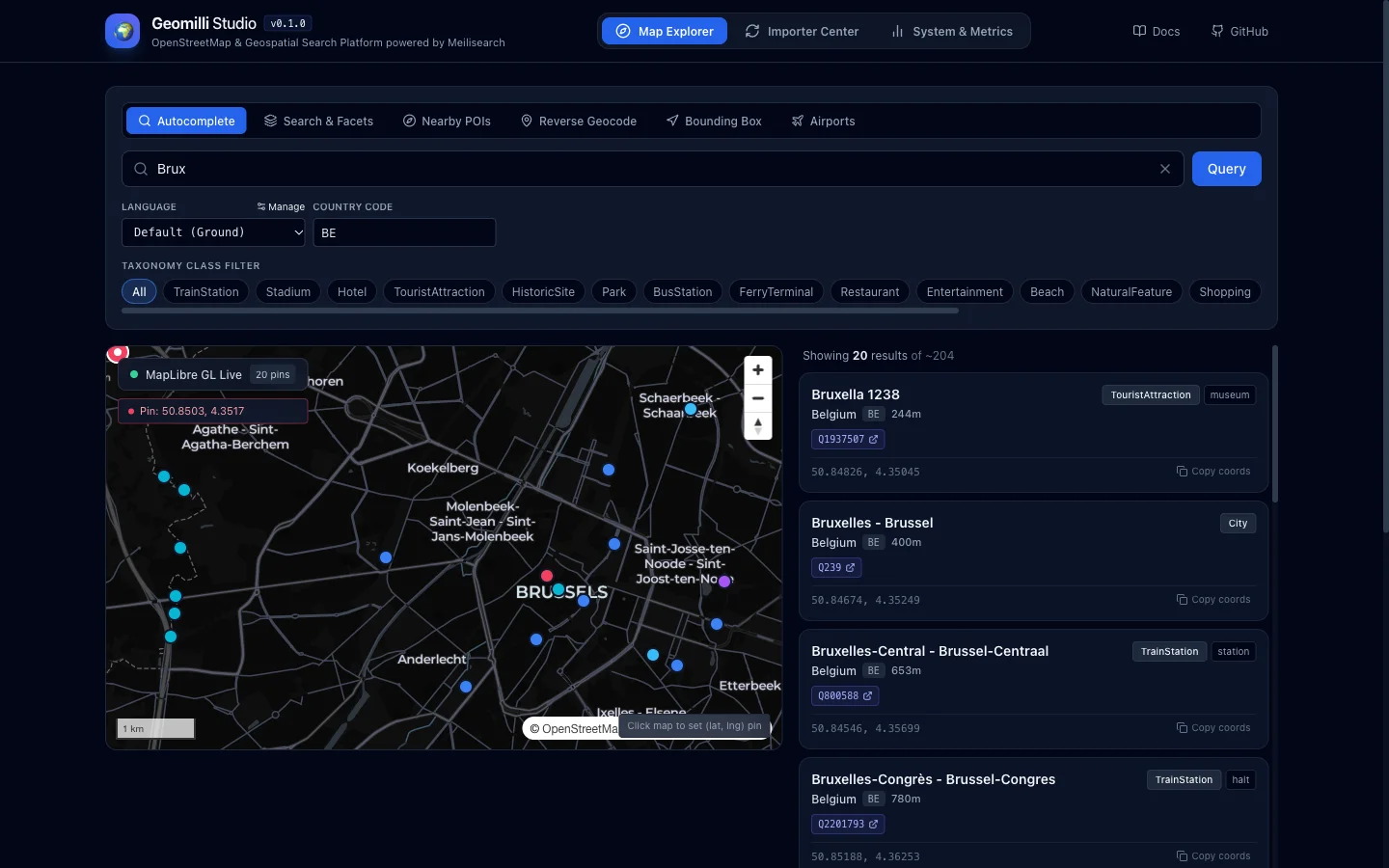
Geomilli: Self-Hosted OpenStreetMap Geospatial Search API with Meilisearch TL;DR: Quick Summary Geomilli is an open source Apache-2.0 geospatial platform that converts raw OpenStreetMap extracts into a fast self-hosted place search API. A streaming harvester daemon downloads country PBF files, filters them with Osmium, maps features into 19 canonical classes, enriches them with Wikidata and Wikipedia pageviews, and indexes them into Meilisearch with zero-downtime swaps. A stateless Go API then serves sub-10ms autocomplete, full-text faceted search, reverse geocoding, nearby radius search, bounding-box queries and IATA/ICAO airport lookup. A React MapLibre console called Geomilli Studio provides an API playground, importer control with live progress, and latency telemetry. Default ingest is Belgium in about 60 to 90 seconds via Docker Compose. For amateur radio, it’s a self-hosted gazetteer for SOTA and POTA planning, APRS map labels, repeater and club finders, DXpedition airport routing, and offline EmComm dashboards with no Google API key or usage bill. What Is Geomilli? Geomilli is a self-hosted open source geospatial search platform that ingests OpenStreetMap data and serves it through a high-performance Go REST API backed by Meilisearch with sub-10ms autocomplete and multilingual place search. The repository at https://github.com/obaid22192/geomilli is a monorepo with four parts: geomilli-api (stateless Go REST service), geomilli-harvester (streaming OSM ingestion daemon), geomilli-studio (React 19 plus TypeScript plus MapLibre developer console), and docs (VitePress documentation site published to GitHub Pages). Full docs live at https://obaid22192.github.io/geomilli/. The stack needs Go 1.25 plus, Meilisearch v1.13, Docker Compose v2, and osmium-tool inside the harvester image. Geomilli Studio map explorer and API playground with live MapLibre map, endpoint tester and one-click cURL generator. Image credit: obaid22192/geomilli repository, Apache-2.0. Architecture at a Glance Component Responsibility Tech stack Scaling note geomilli-api Autocomplete, search, reverse, nearby, bbox, airports, telemetry Go 1.25, Chi router, Meilisearch Go SDK Stateless, scale replicas without limit behind Nginx, Traefik or ALB geomilli-harvester Fetch PBF, Osmium filter, transform, Wikidata enrich, index with atomic swap Go 1.25, osmium-tool, SQLite WAL cache Single instance only, scale vertically plus HARVESTER_CONCURRENCY Meilisearch engine Live places index plus shadow build index LMDB disk store, local or Meilisearch Cloud Needs fast NVMe for planet scale geomilli-studio Map playground, importer control, telemetry charts React 19, TypeScript, Tailwind, MapLibre GL Static frontend pointing at API port 8080 docs Architecture, pipeline, API reference, studio guide VitePress with Mermaid plugin Served from GitHub Pages Data flow is linear: client apps hit the Go API, the API queries the live Meilisearch index, the harvester builds a shadow index from OSM streams, and a single swap call promotes the shadow to live with zero downtime. Core Feature 1: Search and Geospatial REST API Sub-10ms prefix autocomplete GET /v1/autocomplete?q=Brux&lang=fr returns keystroke suggestions with typo tolerance, localized display names and geo-proximity ranking. A typical hit carries id, display name, class and subclass, country code, per-language names, lat/lng object and a popularity score derived from Wikipedia pageviews. Reported internal timing is around 2 ms. curl -s "http://localhost:8080/v1/autocomplete?q=Brux&lang=fr" | jq . For ham tools this powers callsign-adjacent search boxes: type part of a summit, park or town name and get ranked completions before the operator finishes typing. Full-text and faceted search GET /v1/search queries across destinations, categories and attributes with live facet counts. Example from the docs filters restaurants by class, cuisine, star rating and country: curl -s "http://localhost:8080/v1/search?class=Restaurant&cuisine=italian&star_rating=4&country=BE" | jq . The same facet machinery filters places by the 19 canonical taxonomy classes (City, TrainStation, Hotel, Restaurant, Airport, Beach, Stadium and others), which lets a ham app query only summits, parks, stations or airports. Reverse geocoding GET /v1/reverse?lat=50.8467&lng=4.3525 resolves coordinates into enclosing admin hierarchy plus nearest landmarks. This is the endpoint APRS dashboards, logger maps and telemetry decoders need: turn a received lat/lng into “near X town, Y district” for display. curl -s "http://localhost:8080/v1/reverse?lat=50.8467&lng=4.3525" | jq . Nearby POIs by radius GET /v1/nearby?lat=...&lng=...&radius_meters=1500&class=TouristAttraction returns places inside a radius in meters, sortable by distance or popularity. Replace the class with stations, shelters, hospitals or campsites and the same call answers “what is around my activation site” for portable ops. curl -s "http://localhost:8080/v1/nearby?lat=50.8467&lng=4.3525&radius_meters=1500&class=TouristAttraction" | jq . Aviation and airport resolution GET /v1/airports/BRU looks up by path code, with query filters for IATA, ICAO and country plus limit control. DXpedition and contest travel planning can resolve 3-letter IATA and 4-letter ICAO codes locally instead of scraping airline sites. curl -s "http://localhost:8080/v1/airports/BRU" | jq . curl -s "http://localhost:8080/v1/airports?iata=CRL" | jq . curl -s "http://localhost:8080/v1/airports?country=BE&limit=25" | jq . Bounding-box queries (/v1/bbox) complete the set for map viewport fetching: send the visible corners, get back only the places inside. Core Feature 2: Streaming Ingestion Engine The harvester is a streaming pipeline plus an HTTP/SSE control daemon: Fetch: streams .osm.pbf country extracts from Geofabrik mirrors for requested countries. Osmium filter: runs native C++ osmium tags-filter to keep admin boundaries, transport hubs, amenities and tourism features per config/taxonomy.yaml. Transform: converts geometry to .geojsonseq via osmium export, then emits line-delimited NDJSON batches mapped to 19 canonical classes and filtered through config/languages.yaml. Enrich: resolves Wikidata IDs, pulls Wikipedia pageviews for popularity scoring, extracts airport IATA/ICAO codes, caches everything in local SQLite WAL cache, and trips a circuit breaker that disables online enrichment after 5 straight network errors. Index and atomic swap: batches NDJSON into an isolated shadow index named places__build_, configures searchable and filterable attributes, validates, then promotes with a zero-downtime POST /swap-indexes. Intermediate PBF and NDJSON staging lives on local disk (raw/, staging/), which is why the harvester wants fast local NVMe and can’t share one SQLite file across replicas without SQLITE_BUSY lock contention. Geomilli Studio: Map Playground plus Ops Console Studio has three jobs: API playground: test autocomplete, search, reverse, nearby, bbox and airports against a live MapLibre vector map, with a one-click cURL generator targeting the API on port 8080. Importer control center: launch and watch country ingestion jobs with real-time Server-Sent Events progress, country dedup locks and daemon logs. Telemetry dashboard: track QPS, latency percentiles (p50, p95, p99), zero-hit queries and Meilisearch index health with no external APM. Default ports are API 8080, harvester 8085, Meilisearch 7700, Studio 3333 (or 3000). Useful Makefile targets are make up, make down, make logs, make test, make build, make docs, make docs-build and make up-cloud. 60-Second Quickstart Default config ingests Belgium (about 70 MB, ready in 60 to 90 seconds): git clone https://github.com/geomilli/geomilli.git cd geomilli cp .env.example .env docker compose up -d --build Then open the API at http://localhost:8080, harvester at http://localhost:8085, Meilisearch at http://localhost:7700, Studio at http://localhost:3333, and docs at https://obaid22192.github.io/geomilli/. Set COUNTRIES in .env for more extracts, raise HARVESTER_CONCURRENCY (default 2) for parallel country jobs on a strong host, or point MEILI_HOST and MEILI_API_KEY at Meilisearch Cloud and start with the cloud compose override. How Amateur Radio Operators Can Use Geomilli 1. SOTA, POTA and WWFF activation planning Portable awards live or die on place data: summit names, park boundaries, parking, trailheads, nearby towns for access directions. Ingest the target country extract, then use autocomplete for summit and park lookup, nearby radius search for parking and campsites around the reference coordinates, and reverse geocoding to confirm the parking pin sits inside the right admin area. A club activation page can offer “type three letters, pick the peak” with no Google Places bill. 2. Self-hosted gazetteer for loggers and cluster maps Logging tools constantly need “QTH name to coordinates” and back. Geomilli gives both directions locally: autocomplete and search for forward lookup, reverse for coordinate to place name. Multilingual names (names_by_language) handle border areas and DX QTHs where the English, French and Dutch names differ. Popularity scoring keeps big cities above same-named hamlets in results. 3. APRS and telemetry map labels An APRS-IS dashboard receiving position packets can call /v1/reverse per fix and render “9M2PJU-9 near Rawang, Selangor” instead of bare digits. Nearby search adds context layers: nearest town, station or shelter within X meters. Because the API is stateless and horizontally scalable, a busy net night just means more API replicas behind Nginx. 4. Repeater, club and net finder backend Ingest a country, filter to relevant classes, and build a “find my nearest” page: nearby search around the browser geolocation sorted by distance, faceted search by class for clubs and landmarks used as net venues. Pair with your own repeater table for RF data and let Geomilli supply the place layer (town names, admin areas, coordinates) so the directory stays consistent. 5. DXpedition and contest travel routing The airports endpoint resolves IATA and ICAO codes offline from your own stack. Plan the “fly to X, drive to the island” leg with country=BE&limit=25 style enumeration, confirm the destination airport coordinates, then radius-search accommodation and transport hubs around it. No airline site scraping, no rate limits. 6. EmComm and offline field dashboards Emergency communications teams need hospitals, shelters, stations, stadiums and admin boundaries when the internet is degraded. A pre-ingested Geomilli instance on a laptop or Raspberry Pi class host serves autocomplete, reverse and nearby with no external dependency after ingest. The harvester circuit breaker already tolerates flaky links by disabling enrichment after repeated failures while cached data keeps serving. Keep the index built before deployment day, then run the API plus Meilisearch locally at the command post. 7. Why self-host instead of Nominatim, Photon or Google Option Hosting Speed profile Data control Cost and limits Geomilli Self-hosted Docker stack, Apache-2.0 Sub-10ms autocomplete via Meilisearch Choose countries, taxonomy, languages, popularity model No per-query bill, hardware cost only Nominatim Self-host or public API Correct but heavier, Postgres based Full OSM planet logic, complex setup Public API has strict usage policy Photon Self-host Java plus Elasticsearch Fast typeahead over OSM Good defaults, less tunable ranking JVM plus ES footprint Pelias Self-host microservices plus ES Strong geocoder, many moving parts Very configurable, complex ops Heavy multi-container ops burden Google Places/Geocoding Cloud only Excellent None, terms can restrict storing results Per-request billing, key management Geomilli fits hams who want a small number of countries, typo-tolerant typeahead, airport codes and a MapLibre playground in one compose file, without running a full planet Nominatim database. Practical Tips and Limits Start with one small country (defaults to BE) and confirm the pipeline before ingesting large neighbors. Malaysia (MY) and neighbors follow the same COUNTRIES pattern via Geofabrik paths. Give the harvester fast local disk and enough cores; it is single-instance by design, so scale up the host and raise HARVESTER_CONCURRENCY rather than adding harvester replicas. Scale the API freely: it holds no local state, so add replicas behind any reverse proxy. Watch telemetry for zero-hit queries: they reveal missing taxonomy entries or language gaps worth adding to taxonomy.yaml and languages.yaml. Respect licenses: code is Apache-2.0, OpenStreetMap data stays under ODbL with attribution. The repo is young (7 commits, 2 stars at write time), so pin a release commit, test upgrades on a spare host, and keep Geofabrik plus Wikidata outage fallbacks in mind for enrichment. Frequently Asked Questions What does Geomilli do in one sentence? Geomilli converts OpenStreetMap country extracts into a fast self-hosted search API with autocomplete, reverse geocoding, nearby search and airport lookup backed by Meilisearch. How fast is Geomilli search? Autocomplete is designed for sub-10ms responses with typo tolerance and popularity ranking. The API itself is stateless Go, so extra replicas behind a proxy handle contest or net-night load. What hardware runs a country ingest? Any Docker host with decent CPU and fast local disk works. Belgium at about 70 MB finishes in roughly a minute. Bigger countries want NVMe staging and higher harvester concurrency on a single instance. Can Geomilli work offline at a field station? Yes, after ingest. Build the index with connectivity, then run the API plus Meilisearch locally at the site for place search, reverse labels and nearby POIs with no external calls. How can hams use Geomilli concretely? Use it for SOTA and POTA site lookup, APRS coordinate-to-place labels, repeater and club finder place layers, DXpedition airport routing, and offline EmComm dashboards for shelters and stations. Sources and Further Reading Geomilli repository by obaid22192: https://github.com/obaid22192/geomilli Geomilli documentation site: https://obaid22192.github.io/geomilli/ Meilisearch search engine: https://www.meilisearch.com OpenStreetMap copyright and license: https://www.openstreetmap.org/copyright Geofabrik OSM extracts: https://download.geofabrik.de/ Osmium tool manual: https://osmcode.org/osmium-tool/ MapLibre GL JS: https://maplibre.org/ Nominatim usage policy: https://operations.osmfoundation.org/policies/nominatim/ Summits on the Air programme: https://www.sota.org.uk/ Parks on the Air programme: https://parksontheair.com/ 73 de 9M2PJU. Host your own map intelligence, then take it portable. The post Geomilli: Self-Hosted OpenStreetMap Geospatial Search API with Meilisearch appeared on HamRadio.my - Amateur Radio, Tech Insights and Reviews by 9M2PJU. https://hamradio.my/geomilli-openstreetmap-geospatial-search-api-meilisearch/ #api #geospatialsearch #meilisearch #geomilli #dockercompose #quicksummary #googleapi #react #map #studio #rss #feeds #linksharing #qwibbit
#api #geospatialsearch #meilisearch #geomilli #dockercompose
HamRadio.my (Unofficial)
HamRadio.my (Unofficial) 1d

Stream Deck for Ham Radio: N4MI’s One-Press Shack Automation with Mode Launchers, Propagation Dashboard, and IC-7610 Control TL;DR: Quick Summary Stream Deck for Ham Radio by Dan Marshall N4MI is a free open source project that turns an Elgato Stream Deck into a one-press control surface for a Windows ham shack. Tap FT8 and the full digital stack (ACLog, WSJT-X, JTAlert, rotator software) launches in order with correct delays; tap CW or SSB and the matching stack comes up instead. Other buttons park everything cleanly, swing a Yaesu rotator to preset DX headings via PSTRotatorAz UDP, open a locally hosted propagation dashboard with live solar data and three-level tower storm alerts, drive an Icom IC-7610 over its Ethernet port without touching the logger’s USB COM port, aggregate ham blogs and podcasts in HamShackFeed, and catalog radio manuals in ManualShelf. Everything is PowerShell, Python, and HTML you can read and adapt, MIT licensed at github.com/N4MI73/streamdeck-hamradio, documented across a nine-part blog series at n4mi.tech. It is built for one specific station, so expect to edit paths, ports, and callsigns, ideally with an AI assistant helping. What Is Stream Deck for Ham Radio? Stream Deck for Ham Radio is a free open source collection of PowerShell scripts, Python web servers, and HTML dashboards that converts an Elgato Stream Deck into a purpose-built ham shack controller, launching complete mode software stacks, steering an antenna rotator, serving live propagation data, aggregating ham content, cataloging manuals, and operating an Icom IC-7610 over LAN from labeled hardware buttons. The project lives at github.com/N4MI73/streamdeck-hamradio under the MIT license, built by Dan Marshall N4MI of Grovetown, Georgia (EM83) with Claude AI assisting on the programming while N4MI tested every behavior against real hardware. With 92 commits it’s an actively maintained personal system published as a working example rather than a turnkey product. A companion blog series at n4mi.tech walks through each part with screenshots and setup detail across nine installments, from mode launchers to IC-7610 rig control. N4MI’s Stream Deck main screen with one-press shack controls, including the RADIO folder that opens IC-7610 band and mode buttons. Image via the project announcement on Reddit. Why a Stream Deck Belongs in the Shack Every HF operator knows the startup ritual. For FT8 you open the logger, then WSJT-X, then JTAlert, in that order, wait for each to settle, check the rotator software, confirm the right COM port survived, and only then call CQ. For CW it’s a different stack with a Morse decoder; for SSB something else again. Shutdown reverses the dance, and forgetting a step leaves a zombie process holding a COM port that breaks tomorrow’s session. Multiply by daily operation and the overhead is real. The deeper problem is contention. On N4MI’s desk the IC-7610’s USB CI-V port already has an owner: N3FJP ACLog’s rig interface, or WSJT-X during digital sessions, and only one program can hold a COM port at a time. Anything new that wants to talk to the radio has to fight the logger for it. The Stream Deck project answers both problems with a hardware control layer: one press runs an ordered, delayed, reminder-equipped startup for each mode, and radio control bypasses USB entirely by using the IC-7610’s Ethernet port, so the logger never notices except that its frequency display follows along. A $150 content-creator macro pad becomes, in effect, a custom shack controller of the kind that used to require dedicated hardware or a fully scripted PC. The buttons are physical, labeled with a consistent icon set, and safe to hit mid-QSO without looking at a screen. One-Press Mode Launchers: FT8, CW, and SSB Stacks The heart of the system is scripts/HamRadioLauncher.ps1, invoked from Stream Deck buttons through BarRaider’s free Advanced Launcher plugin with arguments like -mode ft8, -mode cw, or -mode ssb. Each mode launches its complete application stack in dependency order with tuned delays between steps, so WSJT-X never starts before the logger owns the COM port. Popup reminders prompt for ACLog configuration details that humans forget, and steps needing administrator rights elevate themselves automatically. A companion CloseHamRadio.ps1 shuts everything down in correct dependency order and reminds the operator to return the rotator to North, which is exactly the step you skip at midnight after a long session. Configuration is deliberately plain text at the top of the scripts: executable paths for ACLog, WSJT-X, JTAlert, MRP40 Morse decoder, and PSTRotatorAz, plus COM port references (COM 6 for the IC-7610, COM 10 for the WinKeyer on N4MI’s desk), UDP ports, Chrome profile names, and launch delays like $shortDelay and $jtalertDelay for slower PCs. You copy the tree to C:\Ham Scripts\, edit the paths in Notepad, and bind each button to pwsh.exe or powershell.exe with -ExecutionPolicy Bypass -File arguments. One caution from the rig-control notes generalizes: PowerShell 7 from the Microsoft Store or winget lives in a protected folder the Stream Deck software can’t reach, so buttons fail silently; use the MSI install in C:\Program Files\PowerShell\7\ if you want pwsh. Propagation Dashboard and Three-Level Storm Alerts dashboard/ hosts a locally served propagation portal: dashboard_server.py (a small Python server that also proxies DX cluster data) plus N4MI_PropagationDashboard.html, launched and stopped from Stream Deck buttons via PID-file scripts. One press brings up live solar indices, band conditions, DX cluster spots, and propagation maps in a personal operating portal. The standout feature is the storm alert system, built for a tower owner. A three-level banner (CAUTION, WARNING, CRITICAL) fuses WeatherFlow Tempest lightning data with NOAA National Weather Service alerts and warns when it’s time to lower the tower. The Tempest token lives in a Windows user environment variable named TEMPEST_TOKEN, never in the script files, and the server prints at startup whether it found one; without a token the alerts run on NWS data alone. Since October 2026 the dashboard server answers only the dashboard page and its /api/ endpoints, so stray files in its folder aren’t served to the network. Operators who want the portal always on rather than tied to the shack PC can run the Docker edition in the sibling n4mi-shack-server project, which reads the same token from an environment variable. This same always-on logic is what later produced PropMon, the NAS-hosted propagation JSON backend feeding N4MI’s ESP32 desk instruments. PropMon started life in this repo’s propmon/ folder and moved to n4mi-shack-server on 19 October 2026. If you read our earlier PropMon guide, that’s the same software grown up: the dashboard taught the household that anything worth glancing at mustn’t depend on a PC that gets switched off. Rotator Control: Compass Buttons and Preset DX Headings scripts/RotatorAzimuth.ps1 and RotatorStop.ps1 send azimuth commands straight to PSTRotatorAz over UDP (enable Communication, UDP Control on port 12000 in PSTRotatorAz). Stream Deck buttons hold compass directions plus preset headings for key DX regions from N4MI’s EM83 grid in central Georgia: Europe at 50 degrees, West Africa at 80, South America at 145, the Pacific at 290, and Asia at 342. Any -az value from 0 to 360 works, and a dedicated stop button halts rotation immediately. Operators outside Georgia must compute their own great-circle headings with ACLog, PSTRotatorAz’s DXCC lookup, or an online calculator, then update the -az arguments on their buttons. The hardware expectation is a Yaesu rotator with the ERC Mini USB interface, and the UDP port is one $udpPort variable away from matching whatever PSTRotatorAz is configured to use. Web Launcher: The Contest-Grade Browser Setup scripts/HamRadioChrome.ps1 opens the operator’s ham radio tabs (QRZ, LoTW, Club Log, PSKReporter, DX cluster) in a dedicated Chrome profile, separate from everyday browsing. A dedicated profile matters more than it sounds: it keeps cluster logins, LoTW certificates, and dark-theme dashboard tabs out of the way of normal web use, and one button rebuilds the whole operating browser after a reboot. The default profile name is Profile 1, a single variable at the top of the script. HamShackFeed and Pro: A Personal Ham Content Aggregator HamShackFeed solves feed fatigue: ham blogs, podcasts, and YouTube channels scattered across dozens of sites, each checked never. The original HamShackFeed/HamShackFeed.html is a single self-contained file aggregating everything into one searchable dashboard with favorites, read tracking, and a built-in podcast player, fetching through the rss2json.com proxy. It needs a free rss2json API key pasted into RSS2JSON_KEY (without one the proxy throttles to one request per 10 seconds and adding sources fails), which gives 10,000 requests per day on the free tier. HamShackFeed Pro in hamshackfeedpro/ removes that dependency with a Flask server, direct RSS parsing, SQLite persistence, background refresh every 30 minutes, and LAN-wide access on port 8074, so read state follows you between shack PC, laptop, and phone. A migration script imports custom sources from the HTML version’s localStorage, and YouTube channels should be added by full channel URL rather than handle. The tradeoff table from the repo says it best: Feature HamShackFeed (single file) HamShackFeed Pro (server) RSS proxy API key Required (rss2json, free tier) Not needed, direct fetching Read/source persistence Browser localStorage SQLite database Cross-device access No, single browser Yes, across the local network Background refresh No, refresh on open Every 30 minutes automatically Hosting Open the file Python server on port 8074 Pro runs on the shack PC or as an always-on Docker container in n4mi-shack-server, with a Windows Firewall rule opening TCP 8074 for other devices. ManualShelf: The Radio Manual Catalog Every shack accumulates PDFs: rig manuals, amplifier guides, antenna analyzer references, screenshots of menu settings that took an hour to perfect. manualshelf/ catalogs them in a Flask app on port 8075 with auto-generated thumbnails from PDF first pages via PyMuPDF, tagging, full-text search across indexed PDF contents (with a purple PDF TEXT badge on text matches), a bulk tag editor, and an update flow where re-scanning a folder flags changed files with an amber UPDATE badge while preserving titles and tags. The cross-computer design is clever: each instance writes a manifest to a shared NAS exchange folder every 5 minutes, and the other machine lists those remote manuals under a Remote Manuals filter with a note that the file must be fetched via LocalSend or the NAS share. Since October 2026 ManualShelf binds to the local computer only, because its API can open desktop files and has no login; set MANUALSHELF_HOST=0.0.0.0 to restore LAN access at your own risk. Supported formats span PDF, images, Office documents, text, markdown, and HTML, while executables and scripts are refused outright. IC-7610 Rig Control over LAN: The Flagship Addition The October 2026 addition, documented in rigcontrol/ and in the latest n4mi.tech post, is the technically deepest part of the project: full band, mode, filter, tuning-step, split, preamp, NR, and NB control of the Icom IC-7610 from Stream Deck buttons, sent over the radio’s Ethernet port instead of USB. The architecture is one PowerShell script plus a hidden helper: each button runs powershell.exe rig.ps1 , the script talks to rigplane (open source Python library for Icom’s LAN protocol) serving a rigctld-compatible endpoint on 127.0.0.1 port 4532, and rigplane logs into the radio over UDP ports 50001 to 50003 as a network user. The first press of the day starts the helper and logs in over about 5 to 10 seconds; every press after that is near instant because the session stays up. Every press begins by reading the radio’s frequency, so a dead helper is restarted automatically (self-healing), a failed press plays the Windows error sound, and a rolling rig.log records the reason. The helper binds to localhost only, since it can key the transmitter, and the radio password is stored in rig_cred.xml encrypted with Windows DPAPI so only the same user on the same PC can read it. The button set mirrors real operating: ten band buttons (160 through 6 m) that save your current frequency, mode, and filter into the departing band’s stack register before recalling the new band’s, exactly like the front-panel keys; SSB with automatic LSB below 10 MHz and USB above; CW with narrow FIL3; USB-D1 data mode for FT8 and FT4; a FILTER cycler; plus and minus 100 kHz steps that stop at US band edges instead of leaving the band; one-press SPLIT UP 5 for SSB and UP 1 for CW pileups (copy MAIN to SUB, offset, split on, refused with an error tone if transmit would land out of band); PREAMP cycling; NR and NB toggles; and STOP to release the LAN session. Split safety is enforced globally: band, mode, and tuning buttons drop split first so transmit never strands itself on the wrong band or mode. Sixty metres is absent because the 7610 has no band-stacking register for it, and remote power-on was tried and dropped as unreliable. Real-hardware testing taught lessons no simulator would: 6 m band codes are BCD so the band reads 0x10 not 0x0A, a mode change can silently restore that mode’s last filter so the command is sent twice and verified by readback, computer-issued band changes don’t save your departing spot so the script writes the register itself, and two rigplane 2.11.1 commands stall two seconds waiting for replies the radio never sends, so the script uses equivalent CI-V commands that return promptly (the project pins rigplane 2.11.1 for exactly this reason). Setup takes about fifteen minutes: enable Network Control on the radio and power-cycle it, set a network user and password with a DHCP reservation, copy the folder, install rigplane in a venv, set $RadioIP, run rig.ps1 setup, and bind buttons. Owners of other LAN-capable Icoms like the IC-705 or IC-9700 can adapt it with different CI-V addresses and band codes, testing every button before trusting it on the air. Custom Icons and Adapting It to Your Station The icons/ folders hold ready-made 144×144 PNG buttons in one consistent design language, including 26 rig-control icons, with Pillow scripts (make_icons.py) that regenerate them so you can change labels or colors in code rather than by hand. The author’s layout nests a RADIO folder on the main page holding ten band buttons, STOP, and a MODES folder with the rest. The repo is explicit that this is a starting point, not a product: paths, COM ports, UDP ports, Chrome profiles, callsign and grid, Tempest tokens, DX headings, launch delays, band edges (US allocations), filter choices, split offsets, and the radio IP all encode one Georgia station. The good news, as the README notes, is that AI assistants adapt this kind of well-organized script collection far faster than writing from scratch, and N4MI’s own series was built exactly that way, with the human testing on real hardware and the AI doing the programming. Stream Deck Shack Control Versus the Alternatives Approach Cost Operating feel Rig integration Shack-wide scope N4MI Stream Deck system Stream Deck hardware plus free software, MIT Physical labeled buttons, one press per task IC-7610 over LAN, no COM fight; PSTRotatorAz over UDP Launchers, dashboard, rotator, feeds, manuals, rig in one repo Touch Portal / Macro Deck phone app Free or low cost app Touchscreen, no tactile keys Via plugins and scripts, DIY Comparable if you build it all Dedicated controllers (RC-28 knob, band decoders) Hundreds of dollars Excellent single-purpose feel Native, purpose built One device per job, no launcher logic Pure software (SDR console, logger macros) Free Mouse and keyboard only Depends on CAT sharing Limited to each app’s own window Voice or fully automated control Varies Hands free but brittle Script dependent High setup cost The Stream Deck’s edge is tactile one-press reliability across the whole shack rather than depth in any single function: no single button here beats a dedicated controller. But no dedicated controller launches your logger stack, checks the solar wind, parks the rotator, and files your manuals. Frequently Asked Q https://hamradio.my/n4mi-streamdeck-ham-radio-shack-automation/ #streamdeck #hamradio #modelaunchers #propagationdashboard #elgatostream #shack #danmarshall #control #summarystream #deckbelongs #rss #feeds #linksharing #qwibbit
#streamdeck #hamradio #modelaunchers #propagationdashboard #elgatostream
HamRadio.my (Unofficial)
HamRadio.my (Unofficial) 1d

NightDX: Unattended Overnight Shortwave and Medium Wave Listening with the AirSpy HF+ TL;DR: Quick Summary NightDX is a free open source Python application by Marco Zennaro that turns an AirSpy HF+ software defined radio into an unattended overnight broadcast DX station. Before bed you arm a night mission, the software scans every band to measure what is really audible, predicts which scheduled broadcasters should propagate to your location, records the most promising stations through the night with a discovery mode that prefers stations you have never logged, then classifies each recording as speech, music, or noise with an optional on-device AI model and transcribes speech with Whisper. In the morning a browser report presents every catch with an audio player, a one-click reception report generator with SINPO and program details that files as a Gmail draft with the recording attached, and a day-by-day log with QSL card tracking. Schedules come from EiBi and AOKI plus broadcaster HFCC technical data downloaded automatically, propagation uses a compact VOACAP-style HF model and an ITU-R medium wave model with live NOAA solar data and self-calibration from your own scans, and the whole interface is a keyboard-driven 1990s style terminal UI. It runs on macOS, Windows 10/11, and Linux, installs with one uv command, and is MIT licensed at version 0.9.10. What Is NightDX? NightDX is a free open source unattended shortwave and medium wave broadcast listening station built around the AirSpy HF+ receiver, combining automatic schedule downloads, physics-based propagation prediction, real band-scan measurements, overnight scheduled recording, optional AI audio classification and transcription, reception report generation, and QSL card logging in a single menu-driven terminal application. The idea is simple and aimed at a real shortwave listener problem. The best broadcast DX happens while you sleep: transatlantic medium wave openings peak in the small hours, Asian and Pacific shortwave targets line up with greyline at dawn, and nobody wants to sit at the radio at 3 AM pressing record. NightDX closes that gap. You spend five minutes in the evening checking the plan, arm the mission, go to bed, and wake up to a morning report that tells you what was on, what it sounded like, and which stations are worth a reception report. Every recording is already named after its most likely station, already measured, already auditioned by the AI, and one click away from a properly formatted report email. The project lives at github.com/marcozennaro/nightdx under the MIT license, written in Python on the Textual terminal UI framework. At the time of writing it is at version 0.9.10, with 19 commits since the 0.9.0 release candidate on 19 October 2026, and development is visibly active with several releases per week driven by real on-air use from the author’s station in Trieste, Italy, plus early testing reports from Windows users with real HF+ hardware. NightDX in action: the 1990s style terminal interface with the night mission dialog armed over the main screen, showing ranked countries, radio status, schedules, and live space weather. Image via the project announcement on Reddit. Why Unattended Listening Matters for SWL and MW DX Shortwave and medium wave broadcast DX has always been a scheduling problem as much as a radio problem, and three facts make unattended recording almost mandatory for serious results. First, propagation dictates the timetable, not the listener. The D layer absorbs medium wave and lower HF signals during daylight, so transatlantic medium wave DX into Europe opens roughly between local midnight and sunrise, while Asiatic shortwave into Europe peaks around dawn greyline. A listener in Malaysia chasing European evening broadcasts faces the mirror image: the opening happens on somebody else’s night. Either way the best signals arrive when a human operator is least alert. Second, broadcast schedules are dense and volatile. On a typical evening the 49, 41, 31, and 25 metre bands carry thousands of scheduled transmissions from the EiBi and AOKI lists, many overlapping on shared channels, with seasonal A/B schedule changes twice a year plus unannounced frequency swaps. No human can monitor more than one or two frequencies at once, so manual listening samples a tiny fraction of what is actually audible. Third, verification takes longer than listening. A proper reception report needs the station name, frequency, date and UTC time, SINPO code, program details sufficient to prove you heard them, and often an audio clip. Writing that up from a live listening session means pausing to note details while the signal fades. A recorded file with metadata, an AI transcript, and a signal measurement turns a frantic scribble into a calm morning task. NightDX attacks all three: it predicts using schedules plus propagation, measures using real band scans, records the best candidates automatically, and packages the evidence for reporting. The closest mainstream equivalents are KiwiSDR scheduled recordings and general SDR software timers, but those record blind. NightDX records with a reason attached to every file. The Night Mission Workflow: Arm Before Bed, Read the Report at Breakfast The signature concept is the night mission, and it is worth understanding as a workflow before diving into components. In the evening you open NightDX and press F6. A dialog asks for the mission window, typically something like 22:00 to 06:30, plus optional targets if you’re chasing specific stations or countries. The F4 plan preview shows what the software intends to record and why, ranked by predicted audibility. If something looks wrong you press I on any entry for the full reasoning: schedule source, transmitter power and beam from HFCC data, predicted field strength, live solar indices, the learned self-calibration correction from your own past scans, and the resulting score. You arm the mission and walk away. NightDX keeps the computer awake, steps through the plan frequency by frequency, records each slot as FLAC with full station metadata, and moves on. The Windows build runs the mission hidden in the background and keeps going even if you close the main window. A discovery mode biases the scheduler toward stations and countries missing from your log, so the system actively works through your DXCC-style wanted list instead of re-recording the same strong routine stations every night. In the morning you press F8 or open the HTML report in a browser. Every recording appears with the AI verdict (speech, music, or noise), an embedded audio player, the measured signal against the prediction, the other stations scheduled on the same channel, carrier offset measurements, and a Send report button that remembers whether you already wrote to that station. You listen, confirm the identification with your own ears, click through the genuine catches, and file the rest. That’s the whole loop: five minutes at night, fifteen minutes in the morning, and a logbook that fills itself. Schedules: EiBi, AOKI, HFCC Technical Data, MWLIST, and Your Own List Prediction is only as good as its input data, and NightDX layers five schedule sources. EiBi is the backbone: Eike Bierwirth’s long-running shortwave broadcast schedule, the standard reference the whole SWL community uses, covering international broadcasters with frequency, time, language, target area, and site. The AOKI list from the Nagoya DX Circle complements it with additional monitoring-based entries, catching stations and seasonal changes the main list misses. Both download automatically with nightdx update. HFCC data is the differentiator added in version 0.9.7. The High Frequency Coordination Conference publishes the broadcasters’ own coordinated technical schedules: real transmitter power, beam azimuth, and antenna type for roughly two thirds of shortwave broadcasts. NightDX matches about 3,000 of 4,800 shortwave entries against EiBi by frequency, time, and site, and folds the real power and beam into the prediction. Tested on roughly 1,000 recordings from Trieste, this single change lifted ranking quality from 0.64 to 0.68 AUC and the correlation of predicted with measured signal from 0.37 to 0.48. HFCC lines that EiBi doesn’t confirm are deliberately excluded, on the sound principle that not everything registered actually goes on the air. MWLIST covers medium wave properly. EiBi and AOKI handle international MW broadcasters, but the full MW band needs the community MWLIST/FMSCAN database. Registration at fmlist.org is free: log in at fmscan.org, set your location, download the Perseus/ELAD/Winradio user list in CSV tab-separated format, drop it in the mwlist folder inside the data directory, and press Ctrl+U. Note the MWLIST data is licensed for personal non-commercial use. Your own stations joined in 0.9.6 via my_stations.csv, opened from Settings and edited in any text editor with format guidance at the top of the file. One broadcast per line with frequency, UTC window, days, station, and optional country, language, target, coordinates, and power. Only frequency, time, and name are required; without coordinates the transmitter is placed in the named country. NightDX reloads the file on save, reports unreadable lines, and treats your entries as first-class citizens in predictions, scans, missions, and reports, replacing any schedule entry with the same frequency and name. This is the correct home for pirates, clandestines, local low-power stations, and corrections the big lists get wrong. Propagation: Compact VOACAP-Style HF, ITU-R Medium Wave, Live Solar Data, Self-Calibration With schedules loaded, NightDX needs to answer the core question: which of these 4,800 broadcasts will actually be audible at my station tonight? It uses real physics, not heuristics. On shortwave the model walks the great-circle path in F2 hops, derives critical frequency foF2 from local time, solar flux, and Kp index, computes maximum usable frequency from hop geometry, applies George and Bradley D-layer absorption, and adds ITU-R P.372 atmospheric noise. On medium wave it switches to an ITU-R P.368 ground-wave fit plus the ITU-R P.1147 sky-wave formula, which is the right tool for the job since MW night propagation is a different physical regime from HF skip. Live space weather comes from NOAA SWPC: solar flux and Kp feed the model on every run, so a geomagnetic storm automatically demotes high-latitude paths in the evening plan. Pressing F3 shows the most likely countries right now, ranked with measured against predicted values side by side. The most interesting part is self-calibration. After every band scan, NightDX learns the gap between prediction and measurement. Since 0.9.8 the learned correction is split into a receiver-wide component (your antenna, your local noise floor, the model’s systematic bias, measured around minus 33 dB at the author’s station) applied to every station, plus a bounded per-station deviation held within plus or minus 10 dB on shortwave. The earlier design applied only per-station corrections, which meant unscanned stations with no correction jumped ahead of calibrated ones and a few wild values up to plus or minus 40 dB poisoned predictions. The split design tested on about 800 shortwave recordings improved AUC from 0.68 to 0.72 and rank correlation from 0.38 to 0.48. Every scan measurement used for learning is appended to scan_pairs.jsonl in the data folder, capped at 20 MB, so future calibration changes can be validated against real history. Pressing I (why this score) exposes both correction components for any entry, which is exactly the transparency a technical hobbyist wants. Band Scan: Measuring What Is Really Audible Models predict, but the band scan measures. Press Ctrl+R and NightDX snapshots every band through the HF+ in 768 kHz chunks of about half a second each, completing a full sweep in roughly 10 seconds, then compares each scheduled carrier against the local noise floor. The main screen presents the payoff directly: countries ranked by measured Heard dB next to the propagation prediction. When measurement and model agree, confidence is high. When they disagree, the disagreement is data: either conditions differ from the solar indices, or the schedule is wrong, and the self-calibration machinery records the lesson. Two practical details matter. The scan uses libairspyhf directly, so no other SDR program can hold the radio at the same time; close SDR#, SDR++, or HDSDR first. And the receiver is tuned 10 kHz above the station by default (adjustable under Settings, Receiver, Tune offset), with NightDX shifting the signal back in software, which keeps the wanted signal clear of the small DC spike at the center of the receiver spectrum. This isn’t a frequency correction, just clean engineering, and the frequency you hear and record is exactly the one you chose. Recording, Listen Live, and the Retro Terminal Interface Recording is AM demodulation straight from the IQ stream, saved as FLAC with full station metadata embedded. The interface tradecraft around it is thoughtful. Listen live (key L, added in 0.9.9) plays the highlighted frequency through the computer speakers without recording, complete with a signal meter and the stations scheduled there. Tune with minus/plus keys, Page Up/Page Down for 5 kHz steps, or type a frequency directly, and the Record button converts a live session into a normal recording at any moment. The 0.9.10 release fixed the station information panel to a constant height so the tuning buttons stop jumping around while stepping through the band. The essential keyboard map is worth learning: F2 stations on the air now, F3 most likely countries, F4 tonight’s plan preview, F5 or Enter record the highlighted station, F6 night mission, F7 listening log, F8 report, F9 settings, I why this score, L listen live, X skip the station in night missions, Ctrl+R scan now. F1 shows the full key list. Any list sorts by clicking a column title, click again to reverse, third click restores the default order. Skipping (key X, also 0.9.9) deserves a mention because it solves a real annoyance: some schedule entries are permanently wrong for your location, or simply uninteresting. Skipping excludes a station on that frequency or on all frequencies from night missions, lists are marked accordingly, and Night, Skipped stations restores them with Enter. The aesthetic is deliberate: a menu-driven text interface that looks like 1992, built on Textual. No browser dashboard, no Electron shell, no GPU required. It runs over SSH, sips resources during overnight missions, and every function also exists on the command line (nightdx update, nightdx best -n 20, nightdx record 9420, nightdx plan, nightdx night --now --end 06:30, nightdx report), which makes cron and Windows Task Scheduler automation straightforward. AI Audio Verdicts and Whisper Transcripts (Optional) The optional ai extra, about 2 GB plus models on first use, adds two machine listening stages to every recording. First, the MIT AST AudioSet transformer classifies 10-second windows as speech, music, or noise, with the label set cleaned in 0.9.1 to radio-relevant tags only so noisy shortwave audio no longer comes back tagged Vehicle or I. This triage is the real value: a night mission can produce dozens of files, and knowing which ones contain actual program audio versus empty-channel hiss decides where your morning listening time goes. Second, OpenAI Whisper Small transcribes and translates speech for the reception report. Two design choices stand out: weak signals are left blank rather than guessed, which is the honest behavior for evidence-grade reporting, and the detected language is compared against the scheduled language as an identification check (more on that below). Both models run locally on your machine. Nothing is uploaded to any cloud service, which matters for a hobby that already hands enough data to third parties. Honest Identifications: Candidates, Carrier Fingerprints, and Co-Channel Rivals The standout engineering honesty in NightDX, developed across versions 0.9.3 through 0.9.5, is its treatment of station names as candidates, not identifications. On a crowded channel, and medium wave above all, the scheduled station may not be what you actually hear. So every recording carries its evidence: the language Whisper heard versus th https://hamradio.my/nightdx-unattended-shortwave-medium-wave-listening-airspy/ #unattendedovernight #mediumwave #wavelistening #overnightshortwave #nightdx #quicksummary #marcozennaro #qsl #every #python #rss #feeds #linksharing #qwibbit
#unattendedovernight #mediumwave #wavelistening #overnightshortwave #nightdx
HamRadio.my (Unofficial)
HamRadio.my (Unofficial) 1d

How to Switch the TIDRADIO TD-M2 Pro from FRS to PMR446 in 2 Minutes TL;DR: Back up your FRS channels first with Read then Save As, because the installer includes no factory FRS file. Then download the free TD-M2Pro CPS from the TIDRADIO programming software page, open the bundled M2pro--PMR446-16 channel frequency DAT file, select the correct COM port, and click Write. Your TD-M2 Pro reboots on 16 PMR446 channels from 446.00625 to 446.19375 MHz. The video steps start at 0:53. Many TD-M2 Pro units arrive programmed for the North American 22-channel FRS plan. That is perfect in the United States and Canada, but it’s the wrong band plan in Europe, the UK, and Malaysia where license-free handheld use lives on PMR446 around 446 MHz. The fix is very easy and doesn’t need manual frequency entry. TIDRADIO bundles a ready-made PMR446 channel file inside the CPS installer folder. You open that file and write it to the radio over USB. The whole job takes about two minutes. (Watch the PC programming demonstration on YouTube, programming steps start at 0:53) What Switching from FRS to PMR446 Means on the TD-M2 Pro Switching from FRS to PMR446 on the TD-M2 Pro means replacing the analog channel table in the 400-480 MHz RF transceiver from the American 462/467 MHz FRS plan to the 446 MHz PMR446 plan using the factory DAT file and the TD-M2Pro CPS Write function. The TD-M2 Pro has two independent systems inside one body. The 4G LTE PoC side with its IoT SIM and ODmaster talkgroups is untouched by this procedure. Only the local analog UHF side changes. After the write, the upper analog PTT transmits on PMR446 frequencies instead of FRS frequencies, while PoC, Bluetooth binding, contacts, and OTA firmware stay exactly as before. This matters because FRS and PMR446 aren’t interoperable and aren’t legally interchangeable across regions: FRS hardware in Europe or Malaysia transmits outside the local license-free allocation and can cause interference to licensed services. PMR446 hardware in the United States transmits outside FCC Part 95 and isn’t authorized for unlicensed use there. Loading the correct regional plan keeps you legal, ensures you can talk to local handhelds, and avoids confusion during events, convoys, and emergency standby. FRS vs PMR446: Frequency, Power, and Legal Comparison Item FRS (North America) PMR446 (Europe, UK, Malaysia) Frequency range 462.5625 to 467.7125 MHz 446.00625 to 446.19375 MHz Analog channels 22 shared FRS/GMRS channels 16 analog channels, 12.5 kHz spacing Channel example CH1 462.5625, CH15 462.5500 CH1 446.00625, CH16 446.19375 License License-free in US and Canada under FCC/ISED rules License-free in UK/EU under PMR446 rules, Malaysia under MCMC Class Assignment Typical power Up to 2 W ERP on FRS 0.5 W ERP, integrated antenna rule in EU/UK TD-M2 Pro file Not bundled, back up from your own radio via Read then Save As M2pro--PMR446-16 channel frequency DAT file in the installer folder Use with TD-M2 Pro Default on many shipped units Required rewrite for Europe, UK, Malaysia, and most of Asia The TD-M2 Pro RF section covers 400-480 MHz, so it physically supports both plans. The CPS DAT file simply loads the correct frequency, power, squelch, and signaling table for your region. What You Need Before You Start Windows PC with USB port: The TD-M2Pro CPS is a Windows desktop program. Windows 10 and Windows 11 both work. USB programming cable for the TD-M2 Pro: Connect the radio powered on before opening the port dialog. Official TD-M2Pro CPS: Free download from TIDRADIO Programming Software. Download the TD-M2Pro V1.2 package, unzip it, and install it. Keep the extracted folder because it contains the channel DAT files. Two minutes of time: No manual typing, no driver hacking, no hex editing. The PMR446 table is prebuilt. Mandatory backup first: The installer folder contains a ready-made PMR446 file but no factory FRS/GMRS file. Before you overwrite anything, read the channels out of your own radio and save them, otherwise your original FRS plan is gone for good. Optional second radio or notebook: Note which channel and CTCSS tone your group uses, so you can verify voice contact after the rewrite. Your ODmaster account, 4G PoC talkgroups, Bluetooth pairing, and 18650 battery setup aren’t affected. Step-by-Step: Load PMR446 and Write It to the Radio Step 1: Install the CPS from the official download page Go to https://tidradio.com/pages/programming-software, find the TD-M2Pro entry, download the ZIP, extract it, and run the installer. After installation, keep the extracted folder such as TD-M2Pro-V1.2. That folder holds the language folders en and zh-CN plus the factory DAT files. Launch TD-M2Pro from the Start menu. You’ll see the blue toolbar with New, Save, Open, Read, and Write icons, and the empty Channel Information grid. Step 2: Connect the radio and select the COM port Power on the TD-M2 Pro, plug the USB programming cable between the radio and the PC, wait a few seconds for Windows to enumerate the serial device, then in the CPS open the Port selector. Pick the correct port for your cable, for example COM3, and click OK. If you pick the wrong port, Read and Write will fail immediately. Open Windows Device Manager under Ports (COM and LPT) to confirm which COM number appears when you plug and unplug the cable. If no port appears, try a different USB socket, a data-capable USB cable, and reinstall the cable driver, then restart the CPS. Step 3: Back up your current FRS/GMRS channels first This step is compulsory, not optional. The installer folder ships only the PMR446 DAT file. There’s no factory FRS/GMRS DAT file to fall back on. If you overwrite the radio without a backup, you can’t restore the original FRS plan from the installer. In the CPS click Read to pull the current channel table out of your radio. Wait for the read to finish, then click File then Save As and store it somewhere safe, for example my-M2Pro-FRS-backup.dat. Confirm the backup reopens correctly with File then Open before you continue. Keep that backup file. It is your only way back to FRS. Step 4: Open the bundled PMR446 DAT file In the CPS click File then Open. Browse into the installer folder you extracted, for example TD-M2Pro-V1.2, and select the file named M2pro--PMR446-16 channel frequency...dat. Click Open. Don’t rename the DAT extension and don’t open it in Notepad. It’s a binary channel image meant only for the CPS. Step 4: Verify the 16 PMR446 channels loaded correctly The Channel Information grid should now show 16 rows: CH1 446.00625, CH2 446.01875, CH3 446.03125, CH4 446.04375 CH5 446.05625, CH6 446.06875, CH7 446.08125, CH8 446.09375 CH9 446.10625, CH10 446.11875, CH11 446.13125, CH12 446.14375 CH13 446.15625, CH14 446.16875, CH15 446.18125, CH16 446.19375 All rows use simplex with matched Rx and Tx frequency, which is correct for PMR446 handheld to handheld use. Leave power, bandwidth, and signaling at factory defaults unless you have a specific group CTCSS/DCS plan. Step 5: Write the table to the radio Click Write in the top toolbar. Don’t unplug the cable or power off the radio during the progress bar. When the CPS reports success, power-cycle the TD-M2 Pro by turning it off and on again. Spin the channel knob and confirm the display shows PMR446 frequencies such as 446.00625 on CH1. Make a short simplex test with a second PMR446 handheld on the same channel and code. Step 6: Switching back to FRS with your backup file There is no FRS DAT file in the installer folder. So the only way back is the backup you saved in Step 3. In the CPS click File then Open, select your my-M2Pro-FRS-backup.dat, click Write, and reboot the radio. If you skipped the backup, the original FRS plan can’t be recovered from the installer. Backup, CTCSS, and PoC Notes Back up first: Before opening the PMR446 file, click Read to pull the current radio image, then Save As to store it as my-M2Pro-FRS-backup.dat. There’s no factory FRS file in the installer, so this backup is the only way to restore your original channels later. Privacy tones: The factory PMR446 file loads carrier squelch (OFF) on all channels so you hear everyone on frequency. If your group uses CTCSS or DCS, set matching Tx and Rx tones on all your radios after loading PMR446, then Write again. PoC side is independent: 4G talkgroups, ODmaster device binding, friend lists, and GPS tracking live in the cellular partition. Rewriting analog channels doesn’t unbind ODmaster and doesn’t trigger the yellow Network anomaly dot. Amateur 70 cm use: The 400-480 MHz front end can also hold custom simplex entries, but only transmit where your license allows. In Malaysia, an amateur license doesn’t authorize FRS frequencies or out-of-band transmit. Keep PMR446 for license-free team use and use proper amateur gear on 430-440 MHz. Troubleshooting: When Read or Write Fails No COM port in the list: Use a rear motherboard USB port, avoid unpowered hubs, confirm the cable clicks fully into the radio, and check Device Manager for a yellow warning icon that signals a missing driver. Write fails halfway: Close other serial programs, keep the radio screen awake, use a short direct USB cable, then retry Write. A half-written channel table is fixed by simply writing again. Wrong channels after write: You probably opened the wrong DAT file. Reopen the M2pro--PMR446-16 channel file, confirm 446.00625 on row 1, and Write again. Radio still shows FRS after success: You read instead of writing, or you wrote to a second radio profile. Repeat Step 5 and watch for the success dialog before power-cycling. CPS won’t start: Right-click and Run as Administrator, allow it through Windows antivirus quarantine, and install from the official TIDRADIO page rather than a mirror. Frequently Asked Questions Do I need to type PMR446 frequencies by hand? No. Open the bundled PMR446 DAT file in the CPS and click Write. All 16 frequencies load automatically with correct spacing. Where is the PMR446 file located? Inside the extracted CPS installer folder such as TD-M2Pro-V1.2, next to the en and zh-CN folders. Look for the M2pro PMR446 16 channel DAT entry. Will this delete my 4G PoC talkgroups? No. The Write only replaces the analog UHF channel table. PoC groups, ODmaster binding, and SIM service remain unchanged. How do I switch back to FRS for US travel? Open the FRS backup DAT file you saved with Read then Save As before converting, and click Write. The installer includes no factory FRS file, so without your own backup there’s nothing to restore. Is it legal to use FRS frequencies in Malaysia or Europe? No. Use the PMR446 plan for license-free use in those regions. FRS frequencies fall outside the local license-free allocation and shouldn’t be used there. Sources and Further Reading TIDRADIO Programming Software Download – Official TD-M2Pro CPS installer with bundled PMR446 channel DAT file (back up your FRS channels from the radio first, no factory FRS file is included). TD-M2 Pro PC Programming Video Guide – Step-by-step channel file open and write demonstration starting at 0:53. TIDRADIO TD-M2 Pro Official Product Page – Complete specifications, pricing, and direct purchase details. Official TIDRADIO Store – Full lineup of wireless programmers, ham transceivers, and accessories. TIDRADIO TD-M2 Pro Dual-Mode PoC and FRS Radio on HamRadio.my – Full hybrid radio review with ODmaster binding, dual PTT, and 18650 power details. The post How to Switch the TIDRADIO TD-M2 Pro from FRS to PMR446 in 2 Minutes appeared on HamRadio.my - Amateur Radio, Tech Insights and Reviews by 9M2PJU. https://hamradio.my/tidradio-td-m2-pro-frs-to-pmr446-programming-guide/ #frs #pro #minutes #frequency #mhz #proswitching #malaysia #unitedstates #analog #write #rss #feeds #linksharing #qwibbit
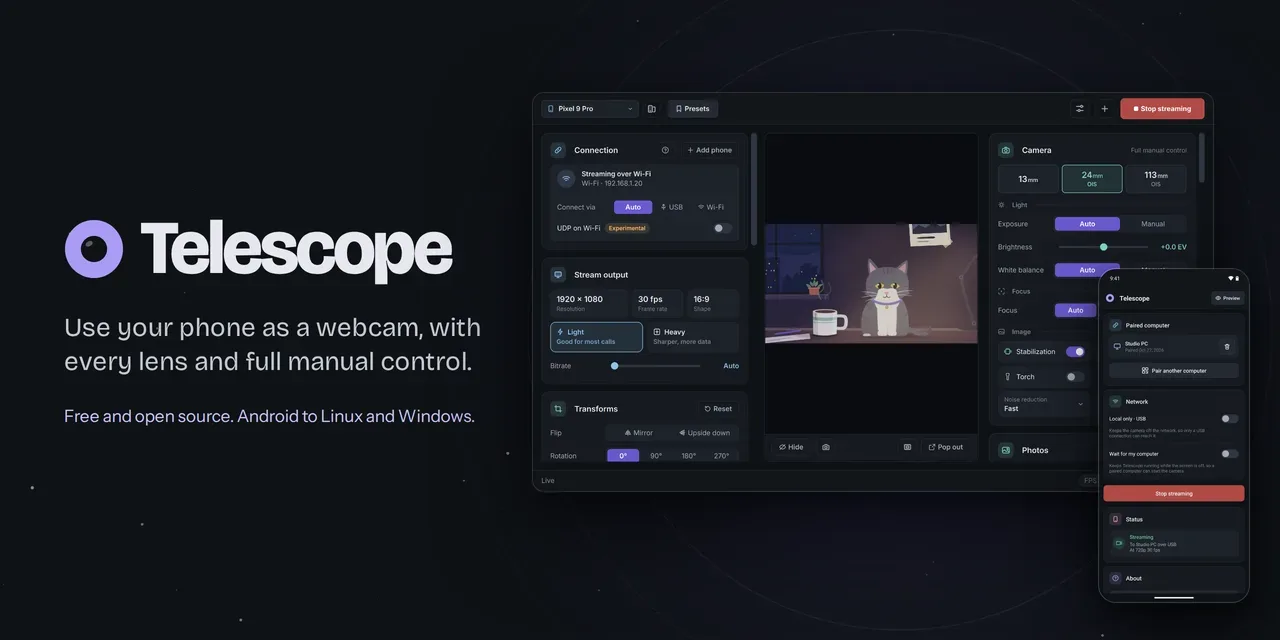
#frs #pro #minutes #frequency #mhz
HamRadio.my (Unofficial)
HamRadio.my (Unofficial) 1d

Telescope: Turn an Android Phone into a Pro Webcam for Linux and Windows TL;DR: Quick Summary Telescope by LunarKittyy is a free and open source AGPL-3.0 application that turns an Android phone into a pro webcam for a Linux or Windows computer. Every real lens works (ultra-wide, main, telephoto), ISO, shutter, white balance, focus and torch are adjustable live from the desktop, and the phone mic can serve as the computer mic. Video travels phone to computer only, encrypted with TLS, over USB or Wi-Fi, with no account, no cloud and no tracking. Version 4.4.2 adds ten new interface languages, per-phone pairing buttons, webcam and capture-card inputs, and a fix that blocks a MediaPipe usage report. For amateur radio operators this solves the classic shack video problem: a beat-up laptop webcam becomes a sharp phone camera for club talks, remote exam proctoring, build livestreams, net check-ins with a bench view, and Field Day documentation, while desk mode flattens logbooks and schematics for the call and the On Air sign can light a shack lamp through a webhook. What Is Telescope? Telescope is a free open source phone-as-webcam system that streams video and audio from an Android phone to a Linux or Windows PC, where it appears as an ordinary virtual webcam and microphone any app can use. Install the desktop app on the computer and the phone app on Android, pair once with a QR code or USB cable, then pick Telescope (Windows) or Phone Camera (Linux) in Discord, Zoom, Teams, OBS Studio or a browser. The desktop handles lens choice, exposure, framing and effects as plugins, most of them optional and off until wanted. Up to four phones, tablets, laptops or USB webcams can stream at once, each on its own virtual camera, or combined into one picture for apps that take a single camera. Anything else with a browser (iPhone, tablet, old laptop) can stream too with nothing to install, through the browser-camera page. The project lives at https://github.com/LunarKittyy/Telescope with the product site and comparison at https://telescope.webcam. It holds about 48 stars and 1 fork, 1,445 commits on master, and ships a Windows installer plus portable zip, a Linux tarball with start.sh, and an Android APK, all from the GitHub releases page. Telescope desktop app streaming from an Android phone, with the phone app beside it. Image credit: LunarKittyy, Telescope repository, AGPL-3.0. Project Snapshot Item Detail Project Telescope by LunarKittyy License GNU AGPL-3.0, free and open source Latest release 4.4.2 (28 Oct 2026: ten new languages, pairing race fix, MediaPipe telemetry block; 4.4.0 added webcam inputs; 4.3.0 added thirteen plugins and Windows 11 camera) Desktop platforms Windows 10 and 11 (per-user installer, no admin; portable zip), Linux (tarball with start.sh, Python 3.12 plus) Phone platforms Android 8 plus native app; any other phone, tablet or laptop via browser camera with nothing to install Codebase Python desktop with Qt interface and plugin host, Kotlin Android app, WebRTC browser path, UnityCapture driver on Windows, v4l2loopback on Linux Network USB via adb or Wi-Fi via TLS; experimental UDP option; browser camera over WebRTC on LAN port 8767; On Air page on port 8768 Privacy model No account, no cloud relay, no tracking in the apps; video stays phone to computer; update checks hit GitHub only; MediaPipe vision telemetry blocked since 4.4.2 Links GitHub repo, product site, full feature docs, comparison, releases Why Phone Cameras Beat Laptop Webcams A built-in laptop camera is usually a fixed-focus 720p module with a tiny sensor, no low-light headroom and a wide-angle lens that flatters nobody. A mid-range Android phone from the last five years carries a larger main sensor with autofocus, a real ultra-wide and often a telephoto, optical or electronic stabilization, a torch, and a DSP that handles noise far better. The established phone-as-webcam tools each keep something back. DroidCam watermarks HD unless paid and gates manual controls and ad removal behind Pro. Iriun watermarks the free tier and gates manual ISO, exposure and white balance. Camo caps free output at 720p and gates 4K, 60 fps and Smart Zoom. All three are closed source with per-vendor accounts, cloud hooks or ad SDKs in the loop. Telescope takes the opposite stance: the whole app is free, every lens and manual control is included, output runs up to 4K, there is no watermark and no ads, and the source is public under AGPL-3.0. The trade is narrower platform coverage (Android plus Windows/Linux only, no native iPhone or Mac app) and a younger device-testing base than tools that have been around for years. How It Fits Together Three pieces cooperate, and each has a clear job. 1. The Android app The phone app owns the camera hardware. It enumerates the real wide, main and telephoto sensors, exposes ISO, shutter, brightness compensation, white balance, focus, stabilization, noise reduction and torch per lens, and encodes the stream as H.264 (Light format) or MJPEG (Heavy format). It keeps screen and Wi-Fi awake while open to avoid lag spikes, drops to 720p when very hot on Android 10 plus, shows as a Live Update with Stop button on Android 16 plus, and can run with the screen blacked out to save OLED battery. Pairing tokens live in a config folder readable only by the user on Linux, and the desktop pins the phone certificate at pairing so a different certificate is refused. 2. The desktop app The desktop app owns the virtual camera, the mic path, the plugin pipeline and pairing. On Windows it installs a UnityCapture-based driver (with a dedicated Windows 11 camera since 4.3 so every app including the Windows Camera app can see it). On Linux it drives v4l2loopback through PulseAudio or PipeWire, exposing Telescope Microphone with no extra packages on most desktops. The interface is card based (Camera, Transforms, Stream output, Microphone, Connection plus one card per enabled plugin), cards fold, everything is keyboard navigable, and almost any control can be bound to a key. Presets save camera, output, transform and active plugin settings per phone, lens included, each with an optional shortcut. 3. The link between them USB when the phone is plugged in and answering over adb, Wi-Fi otherwise, with a per-phone override to force either. A new router IP breaks nothing because the phone announces itself on the network. Streams reconnect across transports (pull the cable mid-call and it continues over Wi-Fi), apps see a configurable wait screen after 10 seconds of loss instead of a frozen frame, and a banner names the phone as unreachable after 30 seconds. Light format defaults to about 8 Mbps at 1080p30 with Auto or Dynamic bitrate that backs off before lag starts and even drops frame rate to 15 before giving up, then climbs back. Heavy format trades bandwidth for sharper fast motion and suits USB or strong Wi-Fi. An experimental UDP switch trades reliability signals for lower latency on crowded airwaves but can stutter on many networks, which is why 4.4 moved it from the Connection card into Settings where it is harder to flip by accident. The guided checklist sets up the virtual camera, installs the phone app over QR and pairs the two. Image credit: LunarKittyy, Telescope repository, AGPL-3.0. Up and Running in About Two Minutes Download the desktop build from the releases page: TelescopeSetup.exe on Windows (per-user, no admin needed) or Telescope-linux.tar.gz on Linux (extract and run ./start.sh, which installs the pinned Python dependencies and launches). Follow the checklist that opens on first run. It sets up the virtual camera (one password prompt on Linux for the driver, one Update click on Windows if migrating to the Windows 11 camera), puts the phone app on Android over a QR code, and pairs the two. With the phone on USB, 4.4.1 and later show a Pair button per phone instead of pairing immediately, so a cable-left-plugged phone can’t win the race against the one being scanned. Pick the camera in the meeting or streaming app: Telescope on Windows (Telescope 2 to 4 for extra streams), Phone Camera on Linux. Set the mic to Telescope Microphone (Linux) or CABLE Output after the one-time VB-Cable install (Windows). What Linux needs: a v4l2loopback-capable kernel path handled by start.sh, PulseAudio or PipeWire for the mic, and optionally VA-API setup for GPU decode of Light streams on AMD and Intel (NVIDIA works out of the box, Windows uses any GPU). No Android phone at all still works: pick Browser camera in the phone picker, scan the code from an iPhone, tablet or old laptop, accept the self-signed certificate warning once, tap Start, and keep the page open with the screen on. Camera Control: Every Lens, Set by Hand The Camera card is the reason to pick Telescope over a generic reflector. Lens picker lists the real wide, main and telephoto sensors instead of faking it with crop zoom. Auto mode switches lenses as the framing demands. ISO and shutter by slider or typed value, ranged per lens, plus brightness compensation (usually plus or minus 8 EV). White balance in Kelvin from 2000 to 10000 with green-magenta tint, handy under mixed shack fluorescents and warm bench lamps. Focus in three modes: Auto, tap-a-point (click the preview to focus and meter there), or Manual slider. Greyed-out controls mean the current lens can’t do them; hovering the control header shows per-lens capability. Helpers: stabilization, noise reduction, sharpening, black level lock and torch where the lens offers them, plus a Low light switch that lets auto exposure run the sensor slower (often down to 10 fps at the dark end) so each frame gathers more light, but only when needed. Zoom 1 to 10x with pan on the Transforms card (up to 30x with Max zoom in Settings), flip and 90-degree rotation, independent width and height stretch from 50 to 200 percent. Zoom crops from the full sensor first and hops to the telephoto once the framing fits inside it, which is why zooming in gets sharper instead of blurrier. Dots on the slider mark each lens handover. ISO, shutter, focus and white balance set by hand from the desktop, Pro mode style. Image credit: LunarKittyy, Telescope repository, AGPL-3.0. Stream Pipeline: Resolution, FPS, Format and Bandwidth Resolution list comes from what the current lens and encoder really support, up to 4K. One FPS setting (15 to 60) drives phone and virtual camera together, with unsupported rates greyed out. Canvas size in Settings decouples the virtual camera from the phone: 720p, 1080p or 4K in landscape or portrait, 4:3, or custom even-numbered sizes. On Linux a canvas change reloads the driver (close OBS first). Light (H.264) suits most links at roughly 8 Mbps for 1080p30. Bitrate modes are Auto, fixed 1 to 100 Mbps, or Dynamic which rides the link capacity and trims frame rate before quality collapses. Hardware acceleration decodes on the GPU, most useful at 4K or on laptops. Heavy (MJPEG) suits sharp fast motion on USB or strong Wi-Fi, with a JPEG quality slider. Phones that can’t do Light fall back to Heavy automatically. Footer telemetry shows FPS and throughput live, with a Can’t keep up note that distinguishes weak signal or 2.4 GHz congestion from a full dropout, so the fix (move closer, switch to 5 GHz, plug in USB) is obvious. Microphone Without a Second Device The phone mic becomes a computer mic while streaming. On Linux, Telescope Microphone appears through PulseAudio or PipeWire with nothing extra to install on most desktops. On Windows, the card offers a one-click VB-Cable fetch from VB-Audio (admin prompt plus restart), after which CABLE Output is selected as the mic in other apps. Gain spans minus 24 to plus 12 dB with a limiter (yellow) and clip (red) meter, optional Auto level that rides quiet and loud speech without lifting room noise in pauses, and optional RNNoise-based noise reduction running on the computer (about 20 ms extra delay, best with the call app’s own suppression switched off to avoid thin double-processed audio). Mute lives on the card and in the tray, resets on restart, and can be bound to a push-to-talk key. Camera-off with mic-on is supported (apps see the wait screen), including a start-mic-only mode. The Plugin System: Switch On Only What You Want Most of the desktop is plugins now, a design that landed across 3.5 through 4.3. The Plugins tab in Settings groups them, each with its own search, per-plugin restart, and safe handling (a changed or crashing plugin is left out with a banner naming it). New plugins install from a zip by dialog or drag and drop, start switched off, and carry an explicit trust warning since a plugin can run arbitrary code. Settings and presets survive toggling. Auto framing tracks the presenter with zoom and pan and widens for two people. Image credit: LunarKittyy, Telescope repository, AGPL-3.0. Auto framing and Expose for my face Auto framing finds people with the shared MediaPipe vision download (about 47 MB on Linux, 28 MB on Windows, fetched once from GitHub releases) and drives zoom and pan to hold the framing, from head-only to full body, framing two people together and zooming out after two seconds with nobody in view. Speed (Sloth to Zippy, Easy default), room-to-move deadband (Fidget to Roam, Off follows everything), and an optional widen-for-something-in-hand mode tune the behavior. A skeleton overlay shows what tracking reacts to, preview only, never in the output. Power-saving effects in Settings slows vision plugins while moving to save CPU and battery at the cost of slightly later following. Expose for my face moves the phone metering point to the face, which rescues backlit shack windows, waits during manual focus, and parks where the face was when leaving frame instead of chasing the empty room. Background and Chroma key Background (vision-based) blurs the room or replaces it with a PNG, JPEG, WebP or BMP, with edge softness control, running on the computer so it works with any phone and browser camera. Chroma key (no download) swaps a green, blue or picked-color screen for a color or picture with tolerance, edge and spill controls, giving sharper hair edges under even light at far lower CPU than segmentation. Chroma key swaps a green or blue screen for a picture with no model download. Image credit: LunarKittyy, Telescope repository, AGPL-3.0. Desk and document mode Point the phone down at a page, drag four corners onto the sheet on the preview, and Telescope rectifies it flat and head-on for the call. Shape modes (Auto perspective, A4, Letter, Square, Fill), Contrast mode for uneven light, and Black and white mode for print and pen turn a shaky overhead shot into a readable document. Tap-to-focus still lands on the clicked word, each phone remembers its corners, and the card warns if zoom or framing pushes the sheet out of frame. Desk mode rectifies paper, sketches and whiteboards to face the call head on. Image credit: LunarKittyy, Telescope repository, AGPL-3.0. Several cameras in one picture With two to four streams running, the One picture plugin composites them side by side, in a grid, big-and-small, or in a free layout with OBS-style drag, snap, Shift-stretch, Alt-crop, per-stream zoom window, borders and rounded corners over a color or picture. The composite goes out on the main Telescope camera while each stream still feeds its own virtual camera for OBS scenes. Layouts save by name, switch by key, and ride along in presets. Streams that drop leave the picture after 3 seconds and rejoin on reconnect without freezing the rest. Several cameras in one picture for apps that accept only one camera. Image credit: LunarKittyy, Telescope repository, AGPL-3.0. Fun pack, Colour grading and Cinema tools Fun pack (under Extras) bundles Clone party up to eight copies, Invisibility cloak against a captured empty room, Light painting trails, Slit-scan motion shear, Stick figure tracking, retro Game Boy, 1998 webcam, VHS, CRT and ASCII looks, and Datamosh keyframe-drop smear on Light streams. Colour grading adds Lift, Gamma, Gain and Offset wheels plus temperature, contrast with pivot, saturation, shadows and highlights, RGB and Hue curves, .cube LUT import with strength, grade export, per-phone grades and a before-after split. Cinema tools adds focus peaking, zebras with adjustable threshold, false color, thirds and golden-ratio guides, histogram, waveform, RGB parade, vectorscope and a sensor-dr https://hamradio.my/telescope-phone-as-webcam-android-linux-windows/ #androidphone #prowebcam #windows #linux #telescope #desktop #camera #quicksummary #turn #usb #rss #feeds #linksharing #qwibbit
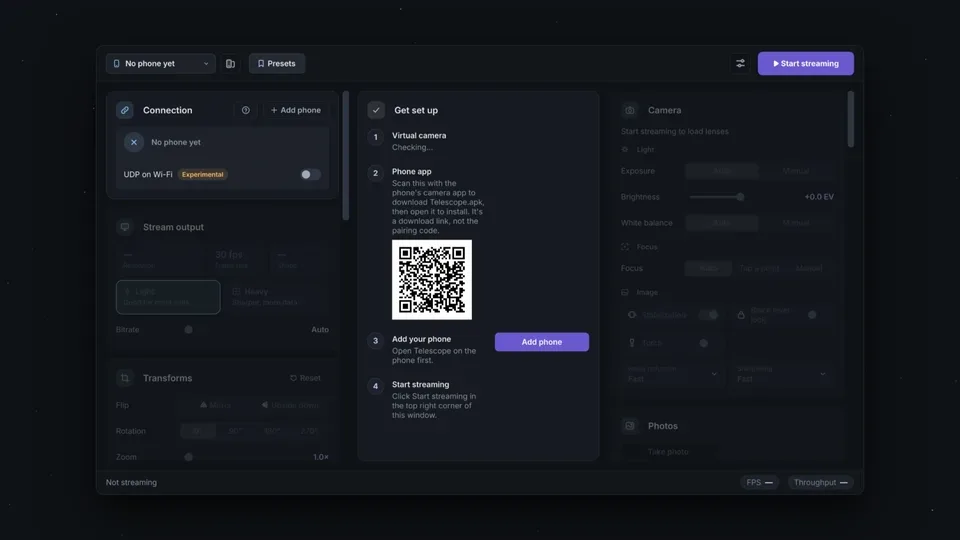
#androidphone #prowebcam #windows #linux #telescope
HamRadio.my (Unofficial)
HamRadio.my (Unofficial) 2d

SimTX: The Multiplayer Shortwave Radio Simulator With One Shared Band and Real Propagation TL;DR: SimTX (https://simtx.net/) is an open-beta multiplayer shortwave radio simulator by qrmcat where everyone shares one simulated ether. Download the SimTX 0.1.0-alpha-14 desktop app or legacy Java client, sign in with Discord, create a station, and transmit mic audio, files, or GNU Radio IQ. Propagation uses IRI-2020 ionosphere with live ionosonde data, ITU-R noise and groundwave, and Watterson fading. Receive through any rtl_tcp SDR program such as SDR++. What Is SimTX? SimTX is a multiplayer shortwave radio simulator in which every operator shares the same simulated ether, so anything one station transmits another station can receive. Run a pirate broadcast station, build your own numbers station, test antennas and modes across day-night propagation, or just tune around and listen. The waterfall on the homepage isn’t an animation. It’s the actual band rendered by the actual receiver DSP chain. The project is in open beta at https://simtx.net/, created by qrmcat. The tagline says it all: one shared band, real propagation, anyone can transmit. A demo video walks through a full Amsterdam to Budapest path, and short audio clips let you hear the same song through clean, overdriven, calm, and storm-ravaged physics. Watch the SimTX demo on YouTube Hear It: Same Song, Different Physics The homepage has a “hear it” section with short clips taken straight from the simulated receiver. The source music is Conspiracy, The Function 2007 invitation, played through the sim. Four clips show the range: Clean 500 kW rig, quiet night: full fidelity, low noise, stable carrier. Same station on an overdriven export rig: compression, clipping, splatter bleeding into adjacent channels. Calm band, gentle fading: slow Watterson flutter, Doppler spread, multipath phase rotation. Kp 7.5 geomagnetic storm: absorption swallows the signal, noise floor rises, copy collapses. The “see it” video broadcasts a whole song from a simulated Amsterdam and receives it 1145 km away in Budapest. Every fade, storm effect, and splatter product in that video comes out of the sim DSP chain, not post-production. How Real Is the Simulation? The wiki documents the models and their sources in depth at https://wiki.simtx.net/. The stack is serious: Ionosphere: IRI-2020 climatology with live ionosonde data assimilated on top. Day/night terminator, season, solar activity, and geomagnetic storms all move the usable window in real time. Groundwave and noise: ITU-R groundwave curves and noise models. Sea water conducts best, city sites are tens of decibels noisier than quiet rural ones, and atmospheric noise dominates the low bands at night. Fading channel: every skywave link runs through a Watterson channel with Doppler shift, multipath delay spread, and storm degradation. Transmitter hardware pain: power amplifiers heat up, compress, clip, splatter, and sag when pushed. Overmodulated AM (index above 1.0) distorts audibly. Short CW rise times generate key clicks. Receiver chain: SDR-style DSP end to end, with bandwidth-dependent noise floor, carrier leak and opposite-sideband suppression controls, and realistic mode sensitivity ordering from CW at the top to wide FM at the bottom. This is why SimTX works as a training tool. Frequency choice, antenna choice, power, mode, bandwidth, time of day, and space weather all interact the way they do on real HF. What You Get: Multiplayer Shortwave World The homepage lists six pillars, and each one is functional in the current builds: Multiplayer shortwave world: server plus clients architecture. Anyone can transmit, everyone else can listen. Sessions queue when all transmitter slots are taken. Transmit anything: microphone, audio file at native sample rate, or raw IQ from GNU Radio over TCP. WFM accepts baseband directly. PipeWire Stereo feeds broadcast stereo. Real propagation: IRI-2020 ionosphere, ITU-R noise and groundwave models, skip zones, LUF/MUF window, NVIS short-range dome, multi-hop long path loss. Real hardware pain: PA thermal modeling, compression, splatter, SWR metering, tuner matching, steel mast radiators for LF/MF with automatic tuner in the 0.4.0 line. SDR-friendly: built-in rtl_tcp server. Point SDR++, SDR Console, or any rtl_tcp capable program at 127.0.0.1:1234 and tune normally. Living ionosphere: day/night cycle, seasons, storms, live space weather assimilation. The 4625 kHz default sits in the low-middle transition and behaves very differently at noon versus midnight. Modulation Modes Reference Set the receiver to the same mode family as the transmitter. The Auto bandwidth option fills the typical width. All values below come from the official Modulation Modes wiki page. Mode Full name Typical bandwidth Minimum Audio range AM full carrier Double sideband, full carrier (ordinary AM) 10 kHz 160 Hz 80 to 4500 Hz AM suppressed carrier Double sideband, suppressed carrier 6 kHz 160 Hz 100 to 2800 Hz USB Upper sideband 2700 Hz 300 Hz 350 to 2700 Hz LSB Lower sideband 2700 Hz 300 Hz 350 to 2700 Hz CW Continuous wave Morse keying 150 Hz 50 Hz n/a (keyed carrier) NFM Narrowband FM 12.5 kHz 2.5 kHz 200 to 3000 Hz WFM Wideband FM broadcast, stereo capable 180 kHz 50 kHz 30 Hz to 15 kHz IQ External complex IQ input (GNU Radio) 48 kHz 100 Hz n/a WSPR Weak Signal Propagation Reporter path 6 Hz 6 Hz 0.5 to 3 Hz FT8 Franke-Taylor FT8 path 50 Hz 50 Hz 20 to 80 Hz Practical notes from the wiki: Use AM full carrier with Auto bandwidth for the first audio-file test. Narrow voice work belongs on USB or LSB with the correct sideband at the receiver. By convention LSB below 10 MHz and USB above, but SimTX doesn’t enforce it. WFM needs far more signal than SSB for the same readability and supports stereo only from the PipeWire Stereo source. IQ passes externally generated complex baseband straight to the channel. Selecting the GNU Radio IQ source forces IQ mode. FT8 and WSPR modes don’t compose messages. The source must already contain encoded signal audio. USB, LSB, and suppressed-carrier AM expose carrier leak and opposite-sideband suppression controls for deliberately imperfect radios. CW exposes key rise time. AM exposes modulation index. Propagation Basics Every SimTX Operator Should Know The Propagation Basics wiki page teaches reception in a useful order: verify your own TX monitor first (it sits before propagation), confirm server, frequency, mode, and bandwidth at the receiver, check distance and bearing, pick a band suited to the time of day, retune the antenna, and only then add power. Two ways a signal travels Groundwave follows the ground outward. It dominates short range out to a few tens of kilometers on all bands and farther on lower frequencies, favors vertical polarization and good ground (sea water is best), and shrinks fast as frequency rises. Skywave refracts off the ionosphere and returns hundreds to thousands of kilometers away, with extra loss per hop on multi-hop paths. Between groundwave range and the first skywave return lies the skip zone, where a station is inaudible even though it is heard both closer and farther away. The frequency window: LUF and MUF Every skywave path has a usable window. Above the maximum usable frequency the signal escapes to space. Below the lowest usable frequency the D-layer absorbs it. The window breathes with the sun: MUF rises with solar activity and daylight and runs higher toward the equator, LUF rises in daylight and drops at night, and frequencies just below MUF usually propagate best. Low bands below about 5 MHz: night-time bands, short to medium range by day because absorption kills long daytime paths. Middle bands 5 to 12 MHz: workable day and night depending on path. The 4625 kHz starter frequency is really a low-band example at 4.625 MHz. High bands above about 14 MHz: daytime and high solar activity bands, closed at night. Grey line: dawn and dusk terminator paths on low and middle bands get enhanced. NVIS, long range, VHF and satellites NVIS (50 to 500 km) needs near-vertical radiation reflected straight back down, a frequency well below the vertical MUF (typically 2 to 8 MHz), and a high-angle antenna such as a low dipole, inverted-V, or loop. This is where modest wire antennas beat beams. Beyond about 1000 km the antenna must launch at low elevation angles: Yagi, vertical, or high dipole, frequency near the path MUF, daylight placed for the band. Above about 30 MHz the ionosphere rarely returns signals, so range is line of sight. SimTX uses a 150 m terrain map, so ridges block, height and horizon beat power, and satellites are audible only above the horizon with Doppler shift that grows with band. Noise and mode sensitivity Readability is signal above the receiver noise floor. Atmospheric noise rules the low bands at night, man-made noise can bury a city receiver tens of decibels above a rural one, and wider bandwidths admit more noise. Approximate sensitivity order from most to least robust: CW, WSPR, FT8, narrow SSB, AM, NFM, WFM. Narrow modes hear deeper because they admit less noise. The Apps: Desktop App vs Legacy Java Client There are two transmitter lines. The modern desktop app is recommended. The legacy Java client still gets fixes but can’t launch or track satellites. Build Version Platforms Size Stations Needs SimTX desktop app 0.1.0-alpha-14 Windows .exe 26.9 MB Ground and satellites Nothing else SimTX desktop app 0.1.0-alpha-14 macOS .dmg Apple Silicon 15.3 MB Ground and satellites Right-click Open on first run SimTX desktop app 0.1.0-alpha-14 Linux AppImage 84.7 MB Ground and satellites Any distribution SimTX desktop app 0.1.0-alpha-14 Linux .deb 14.7 MB Ground and satellites Debian and Ubuntu, signed APT repo SimTX desktop app 0.1.0-alpha-14 Linux .rpm 14.7 MB Ground and satellites Fedora, signed RPM repo SimTX desktop app 0.1.0-alpha-14 Linux .pkg.tar.zst 14.8 MB Ground and satellites Arch Linux repo SimTX desktop app 0.1.0-alpha-14 Linux .xbps 13.8 MB Void Linux repo SimTX desktop app CLI builds Windows 4.2 MB, macOS 10.0 MB, Linux 4.4 MB Ground and satellites Integrations and headless use Legacy Java client 0.4.1 Any system, .jar 10.3 MB Ground only Java 21 or newer Run the Java client with java -jar simtx-transmitter-0.4.1.jar. The published SHA-256 is 0d1b3ab83df244444802eaa10d970ebd694fe8d037c848279f9969bf02d395f3. Linux packages also come from signed APT, RPM, Arch, and Void repositories so the package manager keeps SimTX updated. Recent changelog highlights show active development: 0.4.1 fixed a getFinalDriveDb startup failure, 0.4.0 added LF/MF steel mast radiators with automatic tuner plus checksum-cached NEC decks, 0.3.7 reworked WFM baseband input and propagation-loss math with sample rates to 384 kHz, 0.3.6 added int16 IQ compression, and the 0.3.0 and 0.2.x lines added central accounts, anonymous/linked/supporter tiers, secure sign-in, Discord boost sync, auto-updates with SHA-256 verification, and protocol v23. Getting Started: First Transmission in Five Steps The Getting Started wiki guide goes from install to first reception. TX means transmit, RX means receive. Install the app. Windows 64-bit .exe, macOS Apple Silicon .dmg (right-click then Open the first time), or Linux .deb, .rpm, Arch, Void, or AppImage. Ubuntu 24.04 or Debian 13 or newer is needed. Sign in and connect. Open the app, press Sign in, approve the device in the browser (Copy link works too), then choose a server such as SimTX Demo and press Connect. The window shows server name plus Connected. Work offline opens the app without a server. Create your first station. In the Transmit tab press Create a station, enter Name and Callsign, Pick on globe for location, then open the dipole and set length 31 m and height 10 m to suit the starter frequency. Press Create station. Make a first transmission. Set frequency 4625 kHz, power 100 W, modulation AM Double Sideband Full Carrier with Auto bandwidth ticked, source Audio file with a short clip chosen, then Start TX. The session shows Running. Queued means all transmitter slots are busy and it will start when one frees. Select the session for Radio deck meters. Listen to own TX plays pre-propagation audio. Stop ends it. Receive. Open the Receive tab, pick My station, Public station, or Ad-hoc for any location without an account. Set center 4625 kHz and sample rate 250000 Hz (0.25 MSPS for shortwave, 1.024 MSPS or higher for FM and wide signals). Press Start RX, then in SDR++ add an rtl_tcp source at 127.0.0.1:1234 and tune 4625 kHz AM. Continue from there with Transmission Sources (mic, streams), Antenna System (frequency and choice), Lua extensions (modes, processors, tools, themes without coding), and the full Transmit and Receive tab guides. Stations, Satellites, Rotators, and Coverage Maps The Stations tab is the heart of the desktop app. The wiki screenshot shows a Demo hilltop station on a globe of Europe and Africa with an orange TX beam at 300 degrees, a blue RX beam at 180 degrees, dashed lines to satellites, orbit rings, and sidebar details. Stations: callsign, location picked on the globe, antennas (dipoles, verticals, Yagis, LF/MF steel masts with tuner, 70 cm Yagi templates fixed in 0.4.0), radios, power, SWR graph, visibility. Save and share setups through the Catalog. Satellites: launch a satellite, follow passes, account for Doppler (largest on higher bands), and deorbit it. Only the desktop app supports satellites. The Java client is ground only. Rotators and tracking: turn an antenna to a heading or follow a satellite pass automatically. Map and coverage: the globe view, station lists, who is on the air, coverage maps with map-quality controls, and the link health report. The Health tab shows server load. Settings covers theme, audio, connection, push-to-talk, and extensions, plus a command palette and keyboard shortcuts. Troubleshooting covers sign-in, connection, audio, reception, and session states. Receiving With SDR++ and Other Programs The desktop app bridges to your own SDR program on your own computer. The Receive tab bridge defaults to 127.0.0.1 port 1234 over rtl_tcp. Most SDR applications support rtl_tcp. The wiki uses SDR++ as the example with screenshots. Use 250 kHz (0.25 MSPS) for shortwave and lower bands, 1.024 MSPS or higher for FM and wide signals. Try the 60 m shortwave band 4700 to 5100 kHz or the FM band 87.5 to 108 MHz with RTL-AGC or manual gain. If nothing appears, confirm server, frequency, mode, and bandwidth match, try manual gain, and check that you tuned the right frequency. Community guides also cover SDR Console, DATV receive and transmit tutorials, and DRM transmission. Because the bridge is standard rtl_tcp, the same flow works for GNU Radio, SDRangel, GQRX paths, and logging pipelines. One operator reported the argon.simtx.net:1240 style host-port form when the port box is hidden. Lua Extensions, CLI, and API for Developers SimTX is extensible without forking the app: Lua extensions: install modes, audio processors, tools, and themes without writing compiled code. The catalog hosts shared presets and packages with publishing, audio add-ons, actions, and a package editor. Extension modulation modes appear in the same selector as built-ins with their own controls and media inputs. Separate Lua APIs cover extensions, modulation, audio add-ons, actions, and themes. CLI documentation: headless and integration use, with command-line builds for Windows, macOS, and Linux. SimTX API reference: documents the account service and game protocol message by message with a quick start, framing, connection and handshake, device login, game tickets, control and moderation sessions, limits and errors, compatibility and versioning, and the extension catalog protocol. Packet pages include details such as AntennaPointingUpdate. NEC decks: antenna model decks are fetched by checksum and cached, with validation, conductivity, and ground handling improved in recent releases. Accounts, Connection Test, and Community Create a SimTX account with Discord. Discord verifies identity and SimTX keeps the account. Tiers include anonymous, linked, and supporter transmitters with different limits, plus secure transmitter sign-in, supporter recognition, and automatic Discord boost synchronization. The connection test page on the site checks whether your network can reach the servers before you install anything. People, changelog, downlo https://hamradio.my/simtx-multiplayer-shortwave-radio-simulator/ #shortwaveradio #radiosimulator #multiplayershortwave #sharedband #realpropagation #simtx #gnuradio #same #watterson #sdr #rss #feeds #linksharing #qwibbit
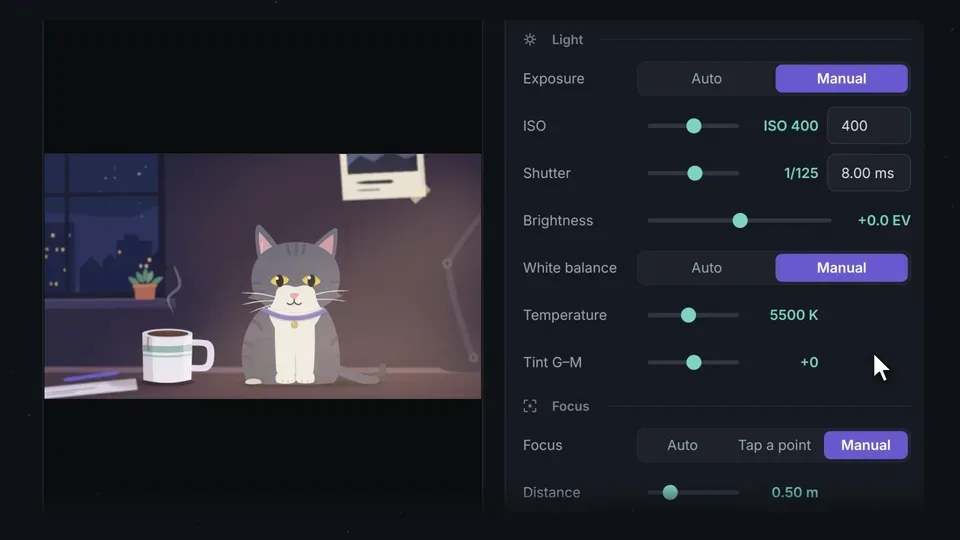
#shortwaveradio #radiosimulator #multiplayershortwave #sharedband #realpropagation

Welcome to HamRadio.my (Unofficial) spacestr profile!

About Me

Unofficial automated RSS/Atom links from the source HamRadio.my, covering supported by inspected titles/text. Original creators are credited at the source; follow original links. Zaps support the independent feed operator, not the source creators.

Interests

  • No interests listed.

Videos

Music

My store is coming soon!

Friends