Fedora Asahi Remix 45 is now available
We are happy to announce the general availability of Fedora Asahi Remix 45. This release brings Fedora Linux 45 to Apple Silicon Macs.
What’s included
Fedora Asahi Remix is developed in close collaboration with the Fedora Asahi SIG and the Asahi Linux project. This release incorporates all of the exciting improvements brought by Fedora Linux 45. Like previous releases, Fedora Asahi Remix 45 supports Apple M1 and M2 systems. In addition, this release includes out of the box initial support for Apple M3, M3 Pro and M3 Max. Asahi Linux upstream now officially supports these new systems. The GPU drivers enabling performant 3D acceleration on the M3 systems are not included at this point. They will be available via a Mesa update in the future.
Fedora Asahi Remix offers KDE Plasma 6.8 as our flagship desktop experience. All of the new and exciting features brought by Fedora KDE Plasma Desktop 45 are included.
A GNOME variant is also available, featuring GNOME 51, with both desktop variants matching what Fedora Linux offers. Fedora Asahi Remix also provides a Fedora Server variant for server workloads and other types of headless deployments. Finally, we offer a Minimal image for users that wish to build their own experience from the ground up.
Installation
You can install Fedora Asahi Remix today by following our installation guide. Follow the usual Fedora Linux upgrade process for existing systems running Fedora Asahi Remix 43 or 44. Upgrades via GNOME’s Software application are unfortunately unavailable. Either KDE’s Plasma Discover or DNF’s System Upgrade command must be used.
Contacts
Please report any Remix-specific issues in our tracker, or reach out in our Discourse forum or our Matrix room for user support.
https://fedoramagazine.org/fedora-asahi-remix-45-is-now-available/
#fedoraasahi #asahiremix #fedoralinux #kdeplasma #apple #siliconmacs #gnome #desktop #server #upgrade
#rss #feeds #linksharing #qwibbit
What’s New in Fedora KDE Plasma Desktop 45
KDE Plasma 6.8 was released on KDE’s 30 year anniversary and we are proud to have it be the star of Fedora KDE Plasma Desktop Edition 45.
The Fedora KDE Plasma Desktop Edition is well suited for many needs. It combines the reliable and trusted Fedora Linux base with the KDE Plasma Desktop environment. It provides a selection of KDE applications that are simple by default, but powerful when needed.
KDE Plasma 6.8
KDE developers continue to release new features, fix bugs and fine-tune the desktop experience to improve on the now well-established foundation of Plasma 6. There have been two KDE Plasma releases since our last Fedora KDE Plasma Desktop Edition shipped. Some of the new features and updates include:
New Features
Per-screen virtual desktops: After 21 years per-screen virtual desktops have finally arrived!
Test your microphone volume: Stop wondering if it’s your microphone or an app that’s misbehaving.
Press-and-hold for special characters: With Plasma’s virtual keyboard enabled, press and hold a key to type special characters related to it.
Light/dark mode toggle: A quick toggle in the system tray to switch between light and dark Global Themes immediately.
“Background Apps” in the System Tray: The system tray now shows apps using the newer “Background Apps” system, which is more common for apps using the Flatpak package format.
Updated Features
Better Accessibility: a new “dwell clicker” feature can send a mouse click when the pointer stops moving. Designed especially for users with mobility issues.
Remote Desktop: Much better performance and quality, bi-directional clipboard synchronization, exclusive mode and overall polish to the experience.
Printing: Now the System Tray icon for printers shows the number of active jobs in a little badge.
Faster virtual desktop switching in the Overview: When you press “Meta + W” to open the Overview screen, Plasma now lets you switch virtual desktops simply by scrolling or pressing the “Page Up” or “Page Down” keys.
Easier to compare different time zones: The Digital Clock widget lets you add multiple time zones and quickly compare them.
Theming
Oxygen: For KDE’s 30th anniversary the Oxygen theme is back and brought up to par.
Breeze: The default Breeze theme also continues to evolve, now featuring rounded list and grid view highlights for many applications, and visible click effects for menu items.
Union: Plasma’s all-new Union theming system streamlines theming by making it possible to style Plasma, QtQuick apps, and QtWidgets apps all with a single set of easy-to-write CSS.
And More …
There is so much new stuff since our last Fedora KDE Plasma Desktop Edition was released. Check out the full release announcements for Plasma 6.7 and Plasma 6.8.
Fedora Linux 45 general updates
Some broader changes in Fedora Linux also directly impact Fedora KDE Plasma Desktop Edition, notably:
Updated Podman: Podman 6 includes new features, but also significant API and CLI breaking changes. Depending on how you use Podman, this change may significantly affect you. The Podman 6 change proposal has information on what is affected.
NetworkManager VPN: NetworkManager-vpnc and NetworkManager-fortisslvpn are not in Fedora 45. If you already have them installed and are updating to Fedora 45, NetworkManager will obsolete and remove them. Users still using them should migrate their connection profiles to openconnect or libreswan.
Lazarus with multiple widget sets: The lazarus-ide now comes with a Qt6 option in lazarus-ide-qt6.
Updated IBus: IBus now supports the ISO latch and shift states of XKB key-maps in Wayland desktop environments like KDE, Sway, Hyprland, COSMIC.
DRM Panic Frontend: The DRM Panic Frontend provides users with a user-friendly interface for understanding kernel panic information and facilitates bug reports.
Wrap-up
The Fedora KDE SIG hopes that you’ll find Fedora KDE Plasma Desktop 45 to be a wonderful experience. When you’re ready to try it, click here for download links and verification instructions. If you would like to learn more, check out the Fedora KDE Plasma Desktop website.
https://fedoramagazine.org/whats-new-in-fedora-kde-plasma-desktop-45/
#kdeplasma #fedorakde #plasmadesktop #desktopedition #fedoralinux #systemtray #newfeatures #apps #backgroundapps #remotedesktop
#rss #feeds #linksharing #qwibbit
How to Rebase to Fedora Linux 45 on Silverblue
Fedora Silverblue is an operating system for your desktop built on Fedora Linux. It’s excellent for daily use, development, and container-based workflows. It offers numerous advantages such as being able to roll back in case of any problems. If you want to rebase to Fedora Linux 45 on your Fedora Silverblue system, this article tells you how. It not only shows you what to do, but also how to revert things if something unforeseen happens.
Update your existing system
Prior to actually doing the rebase to Fedora Linux 45, you should apply any pending updates. Enter the following in the terminal:
$ rpm-ostree update
or install updates through GNOME Software and reboot.
Note
rpm-ostree is the underlying atomic technology that all the Fedora Atomic Desktops use. The techniques described here for Silverblue will apply to all of them with proper modifications for the appropriate desktop.
Rebasing using GNOME Software
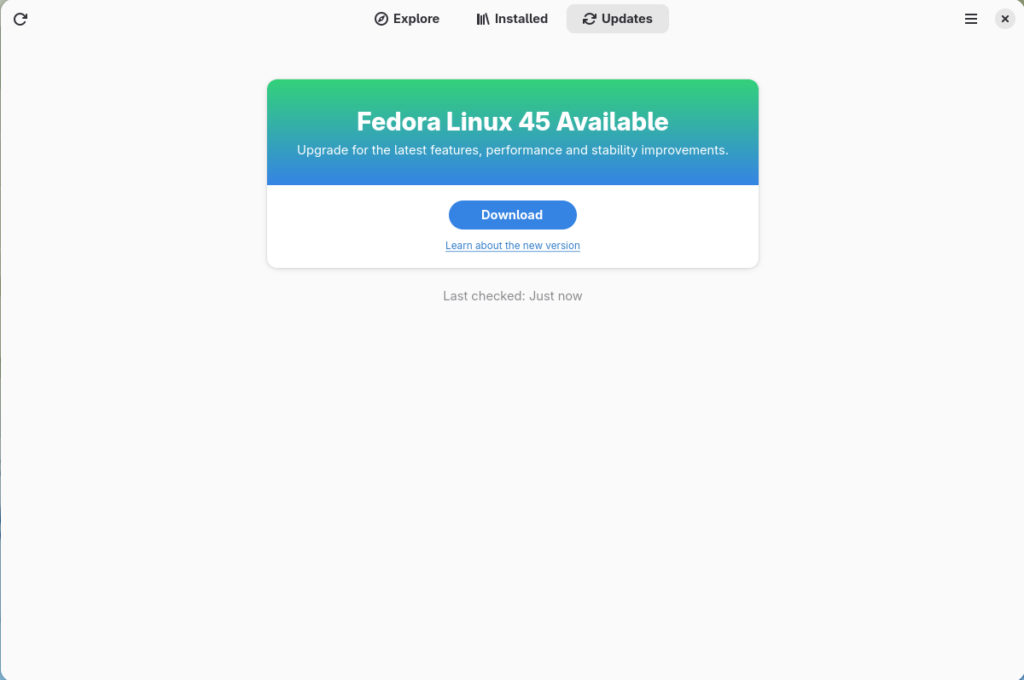
GNOME Software shows you that there is new version of Fedora Linux available on the Updates screen.
First thing to do is download the new image, so select the Download button. This will take some time. When it is done you will see that the update is ready to install.
Select the Restart & Upgrade button. This step will take only a few moments and the computer will restart when the update has completed. After the restart you will end up in a new and shiny release of Fedora Linux 45. Easy, isn’t it?
Rebasing using terminal
If you prefer to do everything in a terminal, then this part of the guide is for you.
Rebasing to Fedora Linux 45 using the terminal is easy. First, check if the 45 branch is available:
$ ostree remote refs fedora
You should see the following in the output:
fedora:fedora/45/x86_64/silverblue
If you want to pin the current deployment (meaning that this deployment will stay as an option in GRUB until you remove it), you can do this by running this command:
# 0 is entry position in rpm-ostree status
$ sudo ostree admin pin 0
To remove the pinned deployment use the following command:
# 2 is entry position in rpm-ostree status
$ sudo ostree admin pin --unpin 2
Next, rebase your system to the Fedora Linux 45 branch.
$ rpm-ostree rebase fedora:fedora/45/x86_64/silverblue
Finally, the last thing to do is restart your computer and boot to Fedora Linux 45.
How to roll back
If anything bad happens (for instance, if you can’t boot to Fedora Linux 45 at all) it’s easy to go back. At boot time, pick the entry in the GRUB menu for the version prior to Fedora Linux 45 and your system will start in that previous version rather than Fedora Linux 45. If you don’t see the GRUB menu, try to press ESC during boot. To make the change to the previous version permanent, use the following command:
$ rpm-ostree rollback
That’s it. Now you know how to rebase Fedora Silverblue to Fedora Linux 45 and roll back. So why not do it today?
FAQ
Because there are similar questions in comments for each blog about rebasing to newer version of Silverblue I will try to answer them in this section.
Question: Can I skip versions during a rebase of Fedora Linux? For example from Fedora Silverblue 42 to Fedora Silverblue 45?
Answer: Although it could sometimes be possible to skip versions during rebase, it is not recommended. You should always update to one version prior (42->43->44->45 for example) to avoid unnecessary errors.
Question: I have rpm-fusion layered and I get errors during rebase. How should I do the rebase?
Answer: If you have rpm-fusion layered on your Silverblue installation, you should do the following before rebase:
$ rpm-ostree update --uninstall rpmfusion-free-release --uninstall rpmfusion-nonfree-release --install rpmfusion-free-release --install rpmfusion-nonfree-release
After doing this you can follow the guide in this blog post.
Question: Could this guide be used for other ostree editions (Fedora Atomic Desktops) as well like Kinoite, Sericea (Sway Atomic), Onyx (Budgie Atomic),…?
Yes, you can follow the Rebasing using the terminal part of this guide for every Fedora Atomic Desktop. Just use the corresponding branch. For example, for Kinoite use fedora:fedora/45/x86_64/kinoite
https://fedoramagazine.org/how-to-rebase-to-fedora-linux-45-on-silverblue/
#fedoralinux #fedorasilverblue #gnomesoftware #fedoraatomic #grub #restart #rebasing
#rss #feeds #linksharing #qwibbit
What’s New in Fedora Workstation 45
Fedora Workstation features the latest six months of meticulous polish, under-the-hood responsiveness, and security hardening for F45, based on GNOME 51. Whether you are multitasking across monitors, managing daily appointments, or organizing large sets of files, GNOME 51 brings thoughtful refinements to your daily workflow on Fedora Workstation.
Silky-Smooth Responsiveness: Reworked Frame Scheduling
One standout improvement in GNOME 51 is a reworked frame scheduling and frame delivery system in Mutter. Animations, window snapping, and desktop transitions now hold a rock-steady frame rate even when the CPU and GPU are under heavy compile or gaming loads.
In tandem with this, GNOME streamlined its graphics pipeline by retiring legacy NVIDIA proprietary interfaces in favor of the standard GBM memory management path. This makes Wayland sessions cleaner, faster, and more uniform across all hardware.
Everyday App Polish
Files (Nautilus) Gets Quality-of-Life Upgrades
Files has picked up several subtle but indispensable touches:
Drag-and-Drop Counter Badge: When selecting and dragging multiple files, a small badge now shows the exact count of items you’re moving.
Non-Blocking Operations: Large or slow directory reloads no longer freeze the interface, resulting in a snappier file management experience.
Notification Grouping: Grouping status and operation notifications together now keeps your notification tray tidy.
Calendar Rebuilt for Speed
Calendar feels faster than ever. The entire view-rendering engine was overhauled under the hood. This dramatically cut down the lag when scrolling through dense schedules in Month View. Reorganization within the event editor now presents a cleaner Notes section and native recognition of modern video conference links.
Revamped File Previewer
The quick-look File Previewer received a top-to-bottom redesign built on modern GTK 4 and libadwaita. It now seamlessly matches your desktop theme, respects Dark Style, handles fractional display scaling crisper than before, and properly previews high-resolution images at their actual native size.
Deeper Security: Next-Generation Secret Storage with oo7
Security underpins everything in Fedora Workstation. GNOME 51 introduces oo7, a modern Secret Service provider written from scratch to safely store application passwords, API tokens, and credentials.
Fedora Workstation is replacing legacy keyring daemons with a compartmentalized, sandboxed service. This provides even stronger defense against rogue applications attempting to peek at cached user credentials.
Accessibility and Navigation Upgrades
Keyboard-Driven Screenshots: You can now adjust screenshot selection boxes entirely with your arrow keys (
Alt
to move the selection,
Shift
/
Ctrl
for coarse/fine resizing, and
R
to reset).
Extended Reduced Motion: Toggling the Reduced Motion accessibility option now softens animations across more core widgets and Shell elements than ever before.
Reorganized Settings: The About (System Details) panel now includes a direct button to view the release notes for your running GNOME version, alongside a revamped fingerprint enrollment flow.
Upgrade or Try Fedora Workstation
If you’re already running Fedora, upgrading through GNOME Software or via the terminal with
dnf system-upgrade
will bring you right into GNOME 51. For clean installs, check out the Fedora Workstation live media at getfedora.org.
Share your favorite new feature or thoughts on the release over at the Fedora Discussion forum!
Disclaimer: Google Gemini, using the GNOME 51 release notes, assisted in the creation of this article. It was reviewed by humans before publishing. No apparent hallucinations were noted, however ,some content was not included.
Please read the GNOME 51 release notes for even more cool features that you can enjoy on Fedora Workstation as part of the F45 release.
https://fedoramagazine.org/whats-new-fedora-workstation-45/
#rss #feeds #linksharing #qwibbit
#rss
#feeds
#linksharing
#qwibbit
FedoraWire4h
Migrating away from unmaintained NetworkManager VPN plugins (vpnc and fortisslvpn)
Two legacy NetworkManager VPN plugins—NetworkManager-vpnc and NetworkManager-fortisslvpn—are retiring and will be obsolete, starting in Fedora Linux 45. This is part of ongoing system maintenance and security cleanup.
If you use Virtual Private Networks (VPNs) to connect to remote workplace or enterprise networks, take note of this upcoming change in NetworkManager package availability.
This article contains information about what you need to know. It covers why these plugins are being retired, how this affects your current setup, and how to migrate your VPN connections to actively supported alternatives.
Why retire these plugins?
Both NetworkManager-vpnc and NetworkManager-fortisslvpn are unmaintained. Furthermore, the published issues allow LPE through malicious VPN profiles as well as legacy privilege-handling bugs in older VPN helper scripts, which pose security risks to local systems. Further information is available in this blog post.
To ensure Fedora Linux users remain secure and backed by active upstream maintainers, the Fedora Engineering and Steering Committee (FESCo) and NetworkManager maintainers agreed to retire these unmaintained plugins in favor of modern, secure alternatives already available in Fedora repositories.
Overview of changes and migration paths
Retired PluginProtocol / Network TypeMigration TargetStatus & RecommendationNetworkManager-fortisslvpnFortinet SSLVPNNetworkManager-openconnectopenconnect supports the older PPP-based Fortinet protocols natively and is actively maintained.NetworkManager-vpncCisco IPsec (IKEv1)NetworkManager-libreswanlibreswan handles the same IKEv1 protocol family and is directly maintained by the NetworkManager team.
Step-by-Step Migration Guide
1. Fortinet SSLVPN Users (fortisslvpn → openconnect)
If you currently rely on Fortinet SSLVPN tunnels, switch to the NetworkManager-openconnect plugin.
Install the OpenConnect NetworkManager plugin:
Bash
sudo dnf install NetworkManager-openconnect
Open Settings → Network (or KDE System Settings → Connections).
Click + to add a new connection and select Multi-protocol VPN client (openconnect).
Set the protocol dropdown to Fortinet SSL VPN, input your gateway address and authentication details, and save the profile.
Once verified, remove the legacy package:
Bash
sudo dnf remove NetworkManager-fortisslvpn
2. Cisco IPsec / IKEv1 Users (vpnc → libreswan)
If you use legacy Cisco IPsec VPN tunnels, migrate your connections to NetworkManager-libreswan.
Install the Libreswan NetworkManager plugin:
Bash
sudo dnf install NetworkManager-libreswan
You may need to create file /etc/ipsec.d/ikev1.conf with this content:
config setup
ikev1-policy=accept
This enables the deprecated IKEv1 protocol. Then restart ipsec.service. Note that the ipsec.service must be running, or the activation will fail.
In your desktop network settings, add a new IPsec based VPN connection and select Type=IKEv1.
Enter your gateway IP/domain, the group name enclosed in square brackets (e.g ‘[group]’), group password (pre-shared key), and user credentials corresponding to your previous vpnc configuration. You might have to tune IKE/ESP proposals, DH/PFS settings and routing requirements, which can be obtained from the gateway’s configuration and old vpnc logs.
Test the connection, then remove the legacy package:
Bash
sudo dnf remove NetworkManager-vpnc
What happens during upgrades?
Fedora 43 & 44: Current installations retain their installed plugins so active connections will not abruptly break. However, there will be no further feature or security updates issued for vpnc or fortisslvpn.
Fedora 45+: The legacy packages are officially obsoleted by NetworkManager. An upgrade to Fedora 45 automatically removes NetworkManager-vpnc and NetworkManager-fortisslvpn, if they are installed.
We strongly encourage all users relying on these VPN types to test and migrate their connection profiles to openconnect or libreswan as soon as possible!
https://fedoramagazine.org/migrating-away-from-unmaintained-networkmanager-vpnpluginsvpnc-and-fortisslvpn/
#vpn #vpnplugins #networkmanagervpn #fedoralinux #fortisslvpn #fortinet #settings #network #users #install
#rss #feeds #linksharing #qwibbit
Announcing Fedora Linux 45
The Fedora Project is pleased to announce the release of Fedora Linux 45!
Whether you use Fedora on your desktop, server, edge device, or cloud instance, Fedora Linux 45 brings polished desktop upgrades, powerful new installer features, and updated toolchains.
Every Fedora release is a major community effort – thank you to everyone in our community who helped build, test, and package this release!
Upgrade
If you are already running Fedora Linux, upgrading to the new release is simple. Our user documentation shows you exactly how to start enjoying F45 easily.
Or, start fresh
Looking for a clean install or setting up a new device? Head over to getfedora.org to grab installation media for our flagship Editions:
Fedora Workstation
Fedora KDE Plasma Desktop
Fedora Server
Fedora Cloud
Fedora CoreOS & Fedora IoT
You can also explore our Atomic Desktops (including Silverblue, Kinoite, and Sericea) or choose from alternate desktop options via Fedora Spins (such as Cinnamon, Xfce, MATE, or COSMIC).
What’s new in Fedora Linux 45?
We have a lot of excellent content under the hood in this release. Below is only a snapshot of them. Take a spin through our release notes for individual changes, and details on each change.
One of the biggest highlights in Fedora Linux 45 is integrated support for Stratis storage right inside the Anaconda installer.
Stratis brings modern enterprise storage features to local storage while wrapping device-mapper, XFS, and LUKS in an easy-to-use interface. These features include thin provisioning (over-provisioning), storage pooling, dynamic filesystem sizing, snapshots, and encryption.
GUI Installs (Web UI & Cockpit Storage): When performing custom partitioning during installation, you can launch the Cockpit storage module directly from Anaconda. From there, you can build Stratis pools across one or more physical drives and create dynamic / and /home filesystems on demand.
Automated Installs (Kickstart): For system administrators and automated deployments, Anaconda now supports –type=stratis with autopart, alongside dedicated stratispool and stratisfs kickstart commands.
Read more details about this really cool change in this article.
Desktop Highlights & Ecosystem Updates
Latest Desktop Environments: Updated desktop stacks across GNOME, KDE Plasma, and community spins bring improved performance, refined Wayland support, and better fractional scaling.
Developer Toolchains: Updated development tools and runtime libraries ensure you have access to the latest language features, compiler optimizations, and core system utilities.
System & Kernel Enhancements: Powered by recent Linux kernel releases, Fedora 45 includes broad hardware support, improved power management for laptops, and enhanced container performance.
If you encounter any bugs or unexpected behavior after upgrading or installing, help is close at hand:
Visit the Ask Fedora discussion forum to ask questions and find answers.
Check the Common Issues section on Ask Fedora to see known issues and workarounds tracked during the release cycle.
Important: Two legacy NetworkManager VPN plugins—NetworkManager-vpnc and NetworkManager-fortisslvpn—are retiring and will be obsolete, starting in Fedora Linux 45. Please read this article for information on what you need to do to migrate your VPN connections to supported alternatives.
Let’s keep the conversation going
We’d love to hear how Fedora Linux 45 works for you! Share your thoughts, post your desktop setups, or say hi to fellow community members over on Fedora Discussion.
Enjoy Fedora Linux 45!
https://fedoramagazine.org/announcing-fedora-linux-45/
#fedoralinux #askfedora #desktop #fedoraproject #storage #fedorakde #kdeplasma #fedoraworkstation #cloudfedora #serverfedora
#rss #feeds #linksharing #qwibbit
What’s New for Fedora Atomic Desktops in Fedora Linux 45
Fedora 45 is now available! So let’s see what this new release for the Fedora Atomic Desktops variants includes for Silverblue, Kinoite, Sway Atomic, Budgie Atomic and COSMIC Atomic.
Changes for all Atomic Desktops
Completed the migration to the new Fedora forge
Everything related to the Atomic Desktops now resides in the atomic-desktops organization.
The only remaining repo on GitLab.com/fedora is the one used to build the unofficial bootable container images (gitlab.com/fedora/ostree/ci-test). The migration of this repo will occur in the future, as well.
Anaconda Web UI
The Atomic Desktops installer ISOs now use the new Anaconda WebUI. This follows the same change that occurred for Fedora Workstation 42 and Fedora 43 Spins.
This also enables remote installation of a system using a Web browser on another machine over HTTPS.
See the Fedora Change pages for the switch to the WebUI and for Web based remote installations.
Installer images (ISO) and disk images built by Image Builder
The installer images (ISO) are now built by Image Builder. While there should not be any immediate visible changes, this will help us move to the bootable container images in the future.
This also enables us to offer pre-installed disk images for Silverblue and Kinoite. Those images are currently in preview and only those variants are covered for now. They are the only ones with a first boot experience from a disk image.
See the Fedora Change page for further information.
General Fedora changes worth noting
The following changes are part of the general set of changes that come with Fedora Linux 45 and are worth noting for Atomic Desktops users:
Podman 6.0 & 6.1: The latest version of the container management tool. See the blog posts:
Introducing Podman v6.0.0
Podman 6 Configuration File Changes
Podman 6.1.0: Volume Renaming, Machine Restarts, and a Long List of Bug Fixes
Support for slirp4netns and the BoltDB backend have been removed.
oo7 Secrets Service Provider: New secrets backend, enabled for all variants at the exception of Kinoite.
DRM Panic Frontend: An easier way to report kernel crashes using a web interface. Hopefully you will never see it!
What’s new in Silverblue
Fedora Silverblue comes with the latest GNOME 51 release.
For more details about the changes alongside GNOME 51, see What’s new in Fedora Workstation 45 on the Fedora Magazine.
What’s new in Kinoite
Fedora Kinoite ships with Plasma 6.7, Frameworks 6.31 and Gear 26.08.
Plasma 6.8 is expected to land right after the release.
See also What’s new in Fedora KDE Plasma Desktop 45 on the Fedora Magazine.
What’s new in Sway Atomic
Fedora Sway Atomic comes with the latest 1.12 Sway release.
What’s new in Budgie Atomic
Fedora Budgie Atomic comes with the brand new version 10.10.3 of Budgie Desktop: New Favorites in Budgie Menu, re-introduced Keyboard applet with Wayland support, massive improvements to our desktop view, primary monitor selection, and more! See the 10.10.3 Budgie release announcement.
What’s new in COSMIC Atomic
Fedora COSMIC Atomic comes with the 1.10.0 release of the COSMIC desktop.
Universal Blue, Bluefin, Bazzite, Aurora and secureblue
Our friends in the Universal Blue project (Bazzite, Bluefin, Aurora) have prepared the update to Fedora 45. Look for upcoming announcements in their Discourse.
As always, I heavily recommend checking them out, especially if you feel like some things are missing from the Fedora Atomic Desktops and you depend on them (NVIDIA drivers, extra media codec, out of tree kernel drivers, etc.).
If you have an interest in more security focused variants, I recommend taking a look at the secureblue project.
What’s next
Roadmap to Bootable Containers and bootc / CoreOS / Atomic unification
A lot of work is happening to make the transition to Bootable Containers as smooth as possible for our existing users. You can look at the roadmap for this transition at atomic-desktops#26.
Most of the progress in this release cycle was (again) focused on getting our bootable container images ready for general consumption in Fedora. A part of this work is being able to build them reliably in the Fedora Infra.
The people involved in the bootc, CoreOS and other Atomic variants are working on this effort as part of the new Atomic SIG. See atomic#137 and the project board.
Making it easier to derive images into Fedora Remix images
Work is in progress to make it easier to create derived container images from the Fedora Atomic Desktops images, notably in order to comply with the logo and branding policy.
Once this is ready, we may start publishing “Fedora Remix” branded container images of the Fedora Atomic Desktops. Those images will not include official Fedora branding and will thus be better suited for projects that want to layer their changes on top.
See atomic-desktops#125 and atomic-desktops#132.
Helping us with a few nasty bugs
If you have an interest in contributing to Fedora Atomic Desktops, here are some bugs that we will have to fix in the short term. We would greatly appreciate help with the following issues from the ticket tracker:
Fixing root mount options (atomic-desktops#72): This is a long standing and mostly invisible bug that impacts performance.
Moving away from nss-altfiles (atomic-desktops#108): This is another long standing source of issues that new users regularly face.
Where to reach us
We are looking for contributors to help us make the Fedora Atomic Desktops the best experience for Fedora users. The following are Matrix rooms that may be of interest to potential contributors:
Atomic Desktops SIG: Organization on Fedora’s Forge, #atomic-desktops:fedoraproject.org
Silverblue: Workstation Working Group, #silverblue:fedoraproject.org
Kinoite: KDE SIG, #kinoite:fedoraproject.org
Sway Atomic: Sway SIG, #sway:fedoraproject.org
Budgie Atomic: Budgie SIG, #budgie:fedoraproject.org
COSMIC Atomic: COSMIC SIG, #cosmic:fedoraproject.org
https://fedoramagazine.org/whats-new-for-fedora-atomic-desktops-in-fedora-linux-45/
https://fedoramagazine.org/wp-content/uploads/2026/10/new_in_Atomic_desktop_45.svg
#rss #feeds #linksharing #qwibbit
#atomic
#silverblue
#kinoite
#sway
#budgie
FedoraWire15d
Modernizing the console with kmscon
For decades, the Linux virtual console has relied on the kernel fbcon driver, to draw the framebuffer, to manage fonts, and to handle keyboard layout. Starting with Fedora 45, we’re switching to a userspace utility called kmscon. Depending on your usage of virtual console, this may impact your workflow.
If you’re not a developer or a system administrator, chances you probably never heard about fbcon or virtual terminal (VT), in this case you’re probably not impacted.
You can still read the rest if you’re curious about minimal text interfaces, and maybe you’ll start using it.
How to use the virtual console
Most of the graphic sessions runs in tty1 or tty2. So press Ctrl+Alt+F3 to switch to tty3, and you will get a login prompt. This is the virtual console we’re talking about. To go back to your graphic session, press Ctrl+Alt+F1 (or F2 or F7 depending on your desktop environment).
Why is kmscon replacing fbcon ?
The legacy fbcon driver runs directly in the kernel space, and has significant drawbacks:
Security: Each bug in fbcon can be exploited in the kernel directly, and each crash is a kernel panic.
Keyboard layout: The keyboard layouts supported by the kernel are different from what userspace is using. So when you choose the keyboard layout in the anaconda installer, it tries to find the kernel layout that is as close as possible to the chosen layout.
Fonts: fbcon only uses bitmap fonts, which look small on a High DPI display, and you can’t resize them at runtime. They have limited unicode support. Kmscon can use freetype, and render all monospace fonts.
Scrolling: fbcon does not support scrolling anymore, due to a CVE.
Mouse: fbcon does not have mouse support, it can be added with gpm, but is a bit clumsy. Kmscon uses a transparent hardware cursor when available, and has basic mouse support.
Fbdev: fbcon relies on the old fbdev interface, but all GPU drivers are now using drm. Switching to kmscon allows dropping the fbdev emulation layer in the kernel.
What this will change for users and administrators ?
Kmscon uses pseudo-tty (pts) devices. So when you run tty it returns /dev/pts/0 instead of /dev/tty1, like when you use a graphic terminal. So you will need to update all scripts or configuration that use this information.
Kmscon uses the exclusive drm interface to the GPU to draw the terminal. If you want to run a graphic session or a program that wants to use the GPU, it won’t work like it used to with fbcon. The reason is that fbcon runs in the kernel and can let any userspace application take the GPU. Kmscon can’t do that, so you have to tell it to release the GPU. This is done with a script called kmscon-launch-gui. For example, to start a graphic session you can run
kmscon-launch-gui kmscube -c 100
or
kmscon-launch-gui startx
Kernel messages: By default the kernel error/warning messages are visible in tty1. It can be annoying when it mixes with what you are typing. You can read the messages with dmesg -w, or have a dedicated tty that runs
kmscon --vt=%I --no-switchvt --oneshot --login -- dmesg -w
Kernel fonts: The setfont command has no effect on kmscon. Kmscon uses the built-in unifont or freetype if it’s available. You can read below how to configure it. kmscon can also use psf fonts, if you want the exact same looking as fbcon.
Keyboard layout: The loadkeys command has no effect on kmscon. Instead, kmscon listens to localectl dbus, and updates the keyboard layout accordingly. So, to change layout, run
localectl set-keymap us
Kmscon replaces the default console in F45, for tty1-6. If you want to keep a tty using fbcon, just in case, you can run
sudo systemctl mask kmsconvt@tty5 && sudo systemctl enable --now getty@tty5
Then pressing Ctrl+Alt+F5 switches to your good old fbcon console.
Default kmscon shortcuts
Zoom in: Ctrl++, Ctrl+WheelUp
Zoom out: Ctr+-, Ctl+WheelDown
Rotate the terminal: Super++, Super+-
Scroll up: Shift+UpArrow, Shift+PageUp, Mouse Wheel Up
Scroll down: Shift+DownArrow, Shift+PageDown, Mouse Wheel Down
Copy/paste: select with the mouse, or select a word with double click, and MiddleClick to paste
Switch to ttyX: Ctrl+Alt+FX
Restart kmscon on ttyX: sudo systemctl restart kmsconvt@ttyX
To know on which VT you are using, echo $XDG_VTNR
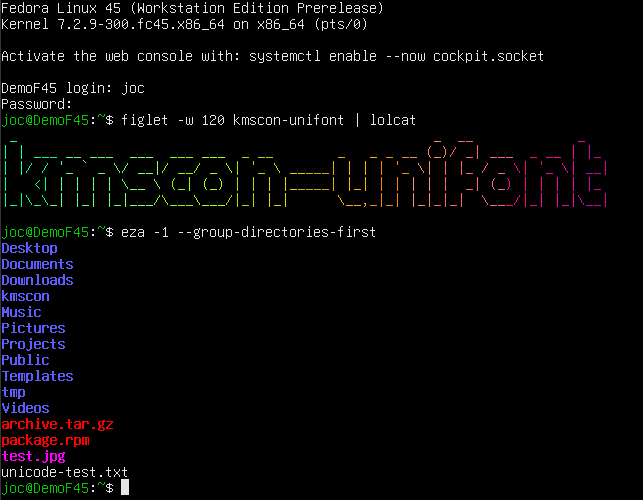
How does it look ?
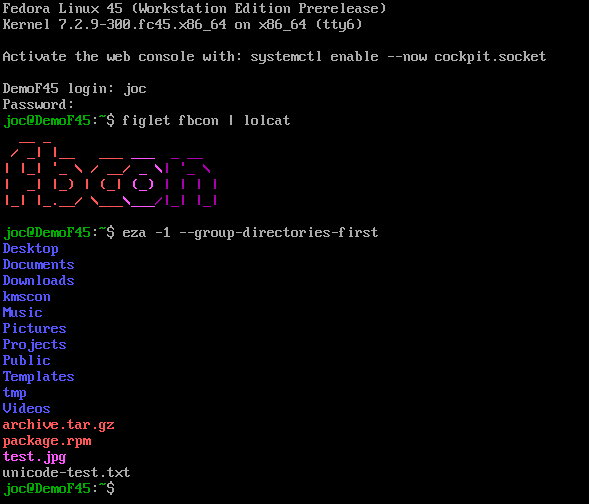
Previous experience, Fedora 45 with fbcon:
Fedora 45 with kmscon (unifont)
Fedora 45 with kmscon (freetype) and some customization (fish, Hack Nerd Font)
How to configure kmscon the way you like
Plugins
kmscon is split into multiple subpackages, so you have a minimal installation without graphic/font dependencies for servers, and optional packages for more features.
kmscon: main package, contains the unifont font, for good unicode support without additional dependencies.
kmscon-freetype: Use the freetype library to render the fonts.
kmscon-pango: Uses the pango library to render the fonts, it is deprecated in favor of kmscon-freetype.
kmscon-gl: This is an opengl renderer. This might be faster but also a bit blurry. You need to add hwaccel to your configuration file to actually use it.
Configuration file
The configuration file for kmscon is /etc/kmscon/kmscon.conf
you can copy the example with this command:
sudo cp /etc/kmscon/kmscon.conf.example /etc/kmscon/kmscon.conf
Here are the most common options to change:
verbose: enable more logs, if you have issues with kmscon. To get the logs, use
journalctl -u kmsconvt*
font-engine: defaults to freetype (if available) or unifont (fallback). You can also use pango, or psf (the format used by the kernel fonts)
font-name: The name of the font (for pango, freetype, and psf). As kmscon runs as root, the font must be installed in /usr/share/fonts, not in your home directory. You can find the exact name to use with fc-list. You can install Cascadia fonts, that are good for non-latin languages with
sudo dnf install cascadia-fonts-all
If you want fancy icons, Nerd fonts are good, but not available in the default Fedora repository. For psf font, font-name is the path to the font file.
font-size: The font height in pixels. By default kmscon tries to scale the font to have about 120×40 characters.
multi-monitor: multi-monitor configuration, the terminal is the same on all monitor. The default is scaled which will scale the font to avoid too much black border. Other options are clone, which will center the terminal on each monitor, and largest which will only use the largest monitor.
dpms-timeout: The timeout (in second) after which the monitor will be turned off. default to 600 (10 minutes). 0 means disabled.
no-mouse: This disable the mouse support. It can be useful to disable touchpad on some laptops.
palette: Change the default color palette for your terminal. You can define each color if none of the provided default palette suits you.
Conclusion
We hope you will enjoy using kmscon in Fedora 45. You may use it occasionally, or use it as your main session for some specific usage, like Veronica Explains for a writerdeck https://www.youtube.com/watch?v=E7vFdy4BEAY.
If you encounter any bugs, have feature ideas, or want to contribute to development, the upstream repository is at https://github.com/kmscon/kmscon.
https://fedoramagazine.org/modernizing-the-console-with-kmscon/
#kernel #kmscon #console #gpu #keyboard #fonts #alt #ctrl
#rss #feeds #linksharing #qwibbit
#kernel
#kmscon
#console
#gpu
#keyboard
FedoraWire18d
Join us for the Fedora Linux 45 Release Party!
Fedora Linux 45 is almost here! Developers, packagers, and quality assurance engineers are hard at work putting the remaining polish on Fedora 45, which means it’s time for our Global Virtual Release Party! It is almost time to celebrate! If all goes according to plan, we will celebrate Fedora 45 just after its actual final release.
To mark the occasion, we are hosting the Fedora Linux 45 Virtual Release Party on Friday, October 30, 2026.
Regardless of the final calendar date of any Fedora Linux release, every release represents months of hard work, testing, and collaboration from our global community. Whether you are a long-time package maintainer, a dedicated documentation writer, a creative graphic artist, or a brand-new user, this release belongs to you.
Join us for a half-day of live sessions, recorded deep-dives, and community socialization. We’re busy filling the upcoming schedule with updates from the Fedora Project Leader and behind-the-scenes looks at new features.
How to Attend
The event is 100% free and open to everyone, but registration is required to access the virtual venue. We will continue using Element, our chat communication platform, as the virtual venue for the Global Virtual Release Parties. Thanks Element & Matrix.org for providing us the great tools to bring our global community together!
Register for the Fedora Linux 45 Release Party live event on Matrix!
See you there!
Don’t miss out on the chance to connect with the people who build Fedora. Grab your ticket, share the link with your friends, and get ready to celebrate Fedora Linux 45.
https://fedoramagazine.org/join-us-for-the-fedora-linux-45-release-party/
#rss #feeds #linksharing #qwibbit
#rss
#feeds
#linksharing
#qwibbit
FedoraWire19d
End of Community update
Last few years a small team of people in the CLE Team were working each week to prepare a Community update for you. First one published on October 21st 2021. We were starting with only Infrastructure and Release Engineering teams (+ initiatives we did in CPE Team at the time), but later added more teams to our weekly reports to bring people a better picture what is being worked on. We thank to everyone who read our updates and found some value in them.
But as life is going forward even this updates are evolving. Last few weeks @abompard worked together with us to improve his weekly report to include the sources we are using for this weekly reports. So I introduce to you This Week in Fedora as a replacement for Community weekly updates. I’m glad that this initiative I started few years ago was able to live for that long and hopefully helped a few people to find information they were looking for.
I would like to thank people who helped me working on Community weekly updates:
@lenkaseg
@jnsamyak
@c4rt0
@jskladan
@t0xic0der
@siddharthvipul1
@patrikp
The post End of Community update appeared first on Fedora Community Blog.
https://communityblog.fedoraproject.org/end-of-community-update/
Welcome to FedoraWire spacestr profile!
About Me
Fedora guides and open desktop discoveries. Unofficial automated fan feed. Content belongs to its respective owners; not affiliated with source publishers.